Blog · Guide · Before you open it
“macOS cannot verify that this app is free from malware”
The warning means Apple has no notarization for the app. It says nothing about what the app does: a harmless open-source tool and a password stealer get exactly the same message. Here is how to tell them apart before you click Open Anyway.
Updated November 15, 2026 · 9 min read
The short answer
- Don’t click Open Anyway yet. Nothing is wrong as long as the app stays closed.
- Check where it came from: the developer’s own site, not an ad, a file host or a link someone sent you.
- Check who signed it with
spctlandcodesign(the Terminal commands are below). - Find out what the code does before it runs. A signature tells you who; only the code tells you what.
If you then decide to open it, use Open Anyway in System Settings. Never strip the quarantine attribute or turn Gatekeeper off.
What the message says, and its other versions
The wording depends on your version of macOS, but the cause is the same: Gatekeeper, the part of macOS that checks apps the first time you open them, found no notarization for this app.
- macOS 15 Sequoia and later: “App” Not Opened. Apple could not verify “App” is free of malware that may harm your Mac or compromise your privacy. The only buttons are Done and Move to Trash.
- macOS 10.15 to 14: “App” cannot be opened because the developer cannot be verified. macOS cannot verify that this app is free from malware.
Two other messages look similar and mean something else:
- “App” is damaged and can’t be opened. The app’s contents no longer match its signature, or the signature is unusable. A download that broke on the way can cause it; so can a file someone modified after it was signed. Treat it as more serious, not less.
- “App” will damage your computer. XProtect, Apple’s built-in malware scanner, recognized known malware. Move it to the Trash. There is nothing to check.
What Gatekeeper checks, and what it doesn’t
When your browser, Mail or a messaging app saves a file, macOS marks it as downloaded (the com.apple.quarantine attribute). The first time you open it, Gatekeeper looks at three things:
- A Developer ID signature: the developer paid for Apple’s developer program and signed the app with a certificate Apple issued to them.
- Notarization: the developer sent the app to Apple, and Apple’s automated service scanned it for known malicious content before approving it.
- XProtect: the app doesn’t match Apple’s signatures of known malware.
The “cannot verify” warning appears when the second check fails: the app is not signed at all, it carries an ad hoc signature (a signature with no identity behind it), or it is signed with a Developer ID but was never notarized.
That is a fact about paperwork, not about behavior. Plenty of honest software is never notarized: open-source projects, tools from developers who don’t pay Apple’s yearly fee, older apps, anything you build yourself. And notarization is not a review of what an app does. It is an automated scan for what Apple already knows to be malicious, and Apple has notarized malware by mistake before: the Shlayer adware passed it in 2020. Apple revokes a certificate once it learns about it, which helps the next person, not the first.
| What you see | What it means |
|---|---|
| The app opens with no warning | Signed with a Developer ID and notarized. Apple knows who the developer is and found nothing known. Not a guarantee. |
| “Apple could not verify…” / “macOS cannot verify…” | Not notarized: unsigned, ad hoc, or a Developer ID that skipped notarization. Says nothing either way about behavior. |
| “…is damaged and can’t be opened” | The contents don’t match the signature, or the signature is unusable. Get a fresh copy from the developer. |
| “…will damage your computer” | XProtect matched known malware. Move it to the Trash. |
Check it yourself in Terminal
Four commands, about five minutes. None of them opens or runs the app. Open Terminal (in Applications › Utilities), type the command, then drag the app or the downloaded file onto the Terminal window to paste its path. If the app is inside a disk image (.dmg), double-click the image first: mounting it shows its contents without running anything.
1. Where did it come from?
macOS remembers the address a file was downloaded from. Run this on the file you downloaded (the .dmg, .zip or .pkg):
mdls -name kMDItemWhereFroms ~/Downloads/Example.dmg
kMDItemWhereFroms = (
    "https://downloads.example.com/Example-2.4.dmg",
    "https://www.example.com/download"
)
The first line is the file’s address, the second the page you were on. Both should belong to the developer, or to a place they link to themselves, such as their GitHub releases. A file-sharing site, a shortened link, a video description or an ad is a reason to stop here.
2. Ask Gatekeeper why it refused
spctl --assess --type execute -vv /Applications/Example.appThe answer says which of the three cases you are in:
# notarized: what Gatekeeper wants
/Applications/Example.app: accepted
source=Notarized Developer ID
origin=Developer ID Application: Example Inc. (A1B2C3D4E5)

# signed by a known developer, but never notarized
/Applications/Example.app: rejected
source=Unnotarized Developer ID
origin=Developer ID Application: Example Inc. (A1B2C3D4E5)

# unsigned or ad hoc: nobody stands behind it
/Applications/Example.app: rejected
3. See who signed it
codesign -dv --verbose=4 /Applications/Example.app 2>&1 | grep -E 'Authority|TeamIdentifier|Signature='
Authority=Developer ID Application: Example Inc. (A1B2C3D4E5)
TeamIdentifier=A1B2C3D4E5
A Developer ID names a person or a company and a ten-character team identifier. Check that the name is the developer you meant to download from: malware often borrows the look of a known app but can’t borrow its certificate. If you see Signature=adhoc and TeamIdentifier=not set, the app is signed by no one you can look up.
4. Check that nothing was changed after signing
codesign --verify --deep --strict --verbose=2 /Applications/Example.app
/Applications/Example.app: valid on disk
/Applications/Example.app: satisfies its Designated Requirement
Anything else (“a sealed resource is missing or invalid”, “code object is not signed at all” on a part of the app) means some of its files are not the ones that were signed.
What these checks can’t tell you: what the app will do. An unsigned app can be perfectly safe. A signed one can steal your passwords: stealers signed with real Developer IDs are found every year, and they work until Apple revokes the certificate. A signature answers “who”. Only the code answers “what”.
Find out what it would do, before it runs
This is the part Gatekeeper leaves to you, and it is what MacVigil is for. It reads the app’s code without running it, follows what the code does with what it reads, and tells you what the app would do to your Mac, with the evidence. Here are two apps that look exactly the same to Gatekeeper: both ad hoc, both not notarized, neither one known to XProtect. Both would get the “could not verify” warning.
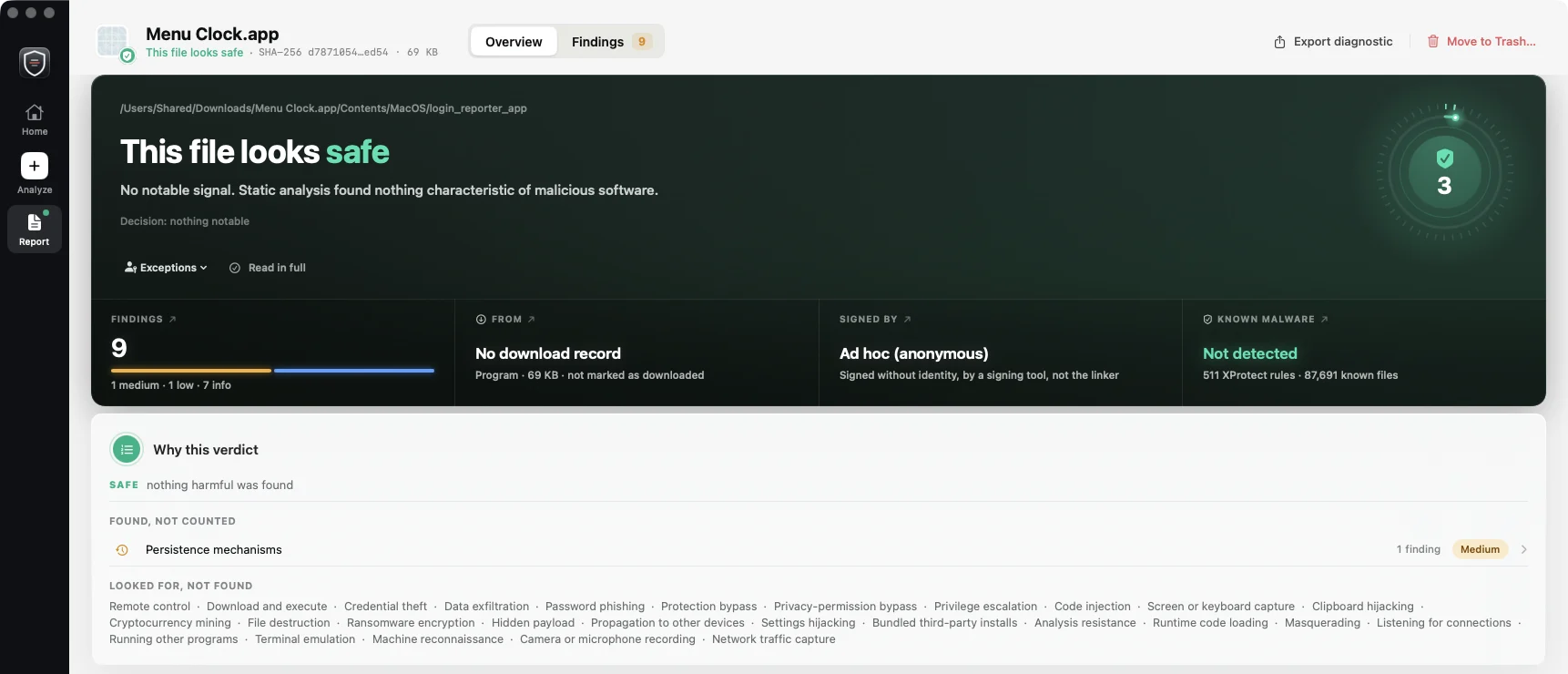
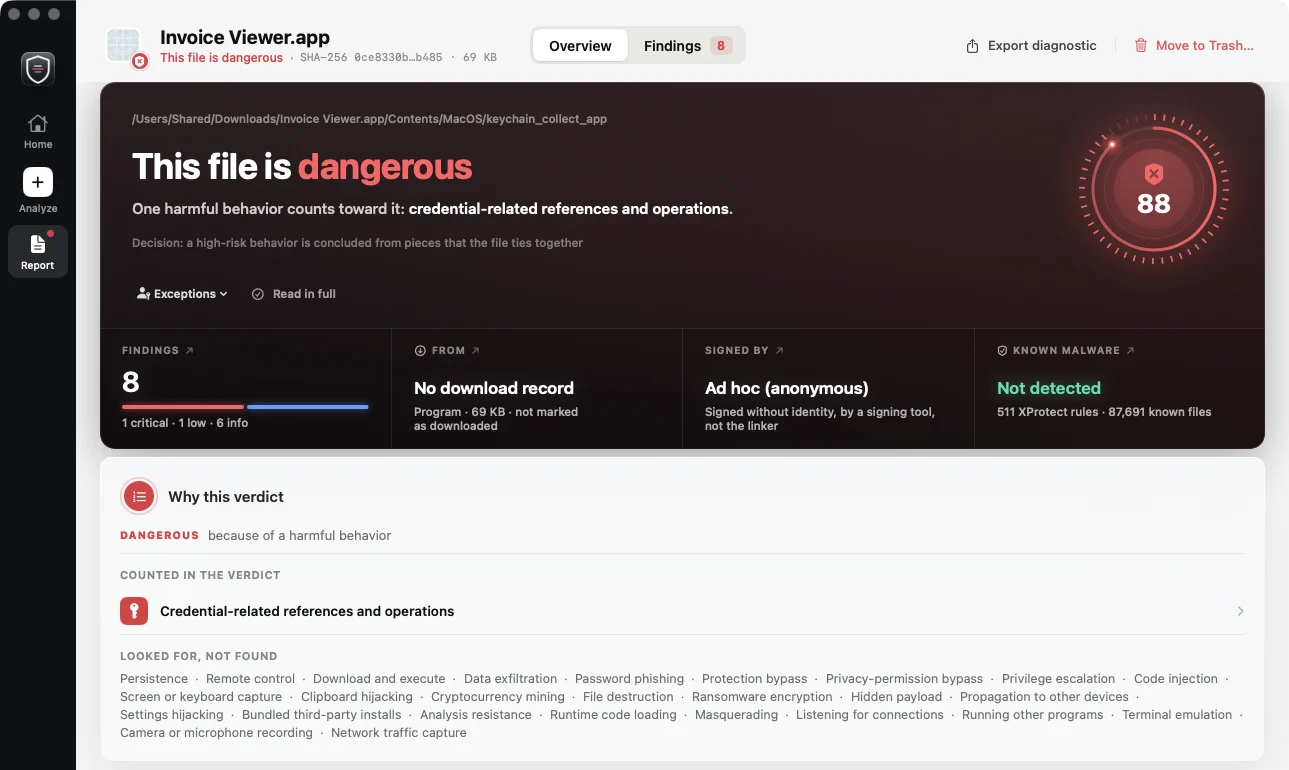
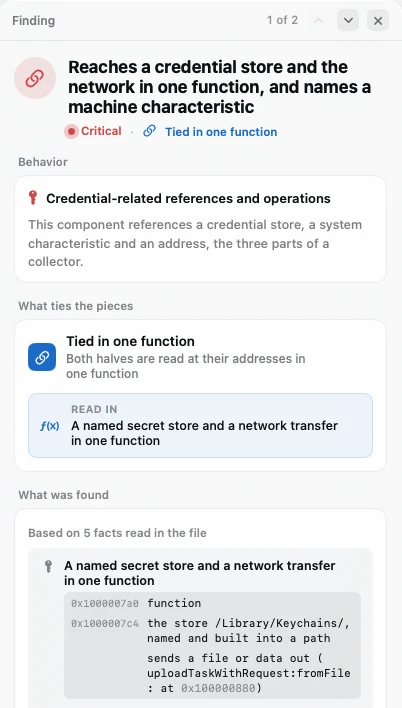
Both are test apps from MacVigil’s own test suite, made to be harmless: the addresses they would send to lead nowhere. The reports are MacVigil’s real output on them.
Red flags that should stop you anyway
- A page tells you how to get past the warning: drag the app onto Terminal, paste a command, or right-click and choose Open. Real developers explain the warning; malware distributors script around it. If a site asks you to paste anything into Terminal to “verify” or “install”, close it.
- A cracked or “free” version of a paid app. It is the most common way Mac stealers such as AMOS reach people.
- A disk image or archive protected by a password that the download page gives you. Passwords keep antivirus scanners from looking inside.
- The app asks for your Mac password right after it opens, in a window of its own rather than the system’s. Stealers ask for it to unlock your keychain.
- The download came from an ad, even a search ad at the top of Google, a file host, or a link in a message.
If you decide to open it: the right way
On macOS 15 Sequoia and later:
- Try to open the app, then click Done in the warning.
- Open System Settings › Privacy & Security and scroll down to Security.
- Next to “App” was blocked to protect your Mac, click Open Anyway. The button stays there for about an hour after your attempt.
- Enter your password and confirm with Open. macOS remembers the exception for this app.
On macOS 14 and earlier, Control-click the app in the Finder, choose Open, then Open again.
What not to do: xattr -cr or xattr -d com.apple.quarantine removes the download mark, so Gatekeeper never looks at the app again, and turning Gatekeeper off with spctl does that for every app you download from then on. Many forums suggest both. Keep them for software you built yourself.
Already opened it?
If the app asked for your password, or you are no longer sure about it:
- Quit it, and look in System Settings › General › Login Items & Extensions for anything new you don’t recognize.
- Check
~/Library/LaunchAgentsand/Library/LaunchAgentsfor files added around the time you opened it. - If you typed your Mac password into it, assume the passwords in your keychain and your browsers are exposed. Change the important ones from another device, starting with your email, and move any cryptocurrency to a new wallet.
Check the next one before you open it
MacVigil reads any app, disk image, installer or script without running it, and shows you what it would do to your Mac, with the evidence. Nothing leaves your Mac.
Free for 7 days, then $29.95 a year for 2 Macs, a launch price: the regular price will be $59 a year. Requires macOS 15 Sequoia or later on a Mac with Apple silicon.
More: how MacVigil analyzes a file · what it detects · all posts and guides