Blog · Guide · Already on your Mac
How to check if your Mac has malware
Symptoms tell you very little. What malware can’t avoid is starting again: after a restart, a program only runs if something asks macOS to start it, and those requests live in a small number of places. Check those places and you are looking at evidence instead of guessing.
Updated November 15, 2026 · 9 min read
The short answer
- Look at Login Items & Extensions in System Settings › General for anything you don’t recognize.
- List the launch agent and daemon folders and read any unfamiliar file with
plutil -pto see which program it starts. - Check for configuration profiles, browser extensions, your shell startup files and the apps you allowed under Privacy & Security.
- Don’t delete anything yet. Note what you found and where, then decide.
Every check below only reads. None of them changes your Mac, and none needs administrator rights.
Signs that matter, and signs that mean nothing
Most of what people notice first proves nothing either way. These are poor evidence:
- A slow Mac, a loud fan, a battery that drains. Spotlight indexing, a backup, a browser with forty tabs or a software update cause all three far more often than malware does. Activity Monitor will usually name the culprit.
- A pop-up on a website saying your Mac is infected. A web page can’t scan your Mac. That message is the page itself trying to sell you something or get you to install something. Close the tab; if it won’t close, quit the browser.
- A spinning cursor or an app that crashes. Usually a bug.
These deserve a closer look:
- You pasted a command into Terminal because a web page told you to “verify you are human” or “fix” something. That is how many Mac infections start. See pasted a command into Terminal.
- A window asked for your Mac password right after you opened a new app or installer, in a window that didn’t look quite like the system’s. See a fake password prompt on a Mac.
- Your browser’s search engine or home page changed and changes back after you fix it, or an extension appeared that you didn’t install.
- An app you don’t know shows up among your login items or in a Privacy & Security list such as Accessibility or Full Disk Access.
The places to check
On macOS, a program that should run without you opening it is registered in one of a few places. Here they are, with what a normal entry looks like.
| Place | Where | What normal looks like |
|---|---|---|
| Login items and background apps | System Settings › General › Login Items & Extensions | Apps you installed and still use, named after their developer |
| Launch agents and daemons | ~/Library/LaunchAgents, /Library/LaunchAgents, /Library/LaunchDaemons | Files named after a vendor (com.vendor.app.plist) that start a program inside that vendor’s app or support folder |
| Loaded services | launchctl list | Mostly com.apple. labels, plus a few from apps you know |
| Configuration profiles | Device Management in System Settings, or profiles list | None on a personal Mac; on a work Mac, profiles from your employer |
| Browser extensions | Each browser’s extensions list | Extensions you chose to install |
| Shell startup files | ~/.zshenv, ~/.zshrc, ~/.zprofile | Missing, empty, or lines you or a developer tool added |
| Privacy permissions | System Settings › Privacy & Security | Apps whose job needs that access |
For the commands, open Terminal (in Applications › Utilities) and type or paste each one. They list and read files; they don’t run, load or change anything.
1. Login Items & Extensions
Open System Settings › General › Login Items & Extensions. The Open at Login list shows apps that open when you log in. Below it, macOS lists the apps allowed to run in the background, which includes the helpers and agents apps install. Recent versions of macOS also track launch agents and daemons here, so a new background item usually appears in this pane, often with the name of the app or developer that added it.
Look for a name you don’t recognize, a developer you never installed anything from, or an item with no clear app behind it. A malicious entry can also borrow a familiar name, which is why the next check reads the files themselves.
2. The launch agent and daemon folders
Launch agents start when you log in; launch daemons start with the Mac, before anyone logs in. Each one is a small property list (.plist) file that tells launchd, the program that starts everything else on macOS, which program to run and when. List the three folders that apps and installers can write to, newest first:
ls -lt ~/Library/LaunchAgents /Library/LaunchAgents /Library/LaunchDaemons
/Users/example/Library/LaunchAgents:
total 16
-rw-r--r--  1 example  staff  612 Nov 12 09:41 com.example.updater.plist
-rw-r--r--  1 example  staff  540 Oct  3 18:02 com.examplesync.helper.plist

/Library/LaunchAgents:
...
The dates help: if something went wrong on a given day, look first at files changed around then. To see what a file starts, read it with plutil -p. A normal one looks like this:
plutil -p ~/Library/LaunchAgents/com.example.updater.plist
{
  "Label" => "com.example.updater"
  "ProgramArguments" => [
    0 => "/Applications/Example.app/Contents/MacOS/ExampleUpdater"
  ]
  "StartInterval" => 3600
}
The label is named after the vendor, and the program sits inside the vendor’s app, where you can see it and where it gets updated with the app. Now compare a file made to look like part of macOS:
plutil -p ~/Library/LaunchAgents/com.apple.cupsd.plist
{
  "KeepAlive" => true
  "Label" => "com.apple.cupsd"
  "ProgramArguments" => [
    0 => "/Users/gtest/.cups/cupsd"
    1 => "-z"
    2 => "qwzzlfnrb-vvxqp.invalid"
    3 => "-P"
    4 => "8443"
  ]
  "RunAtLoad" => true
}
Three details give it away. The label claims Apple (com.apple.), yet the file sits in a user’s own LaunchAgents folder; Apple’s own agents ship in /System/Library/LaunchAgents, which macOS protects. The program it starts lives in a folder whose name begins with a dot, which Finder hides. And RunAtLoad with KeepAlive asks macOS to start it at login and restart it whenever it stops. Any one of these can have an innocent explanation. A com.apple. label in your own folder that points into a hidden folder under your home is a red flag.
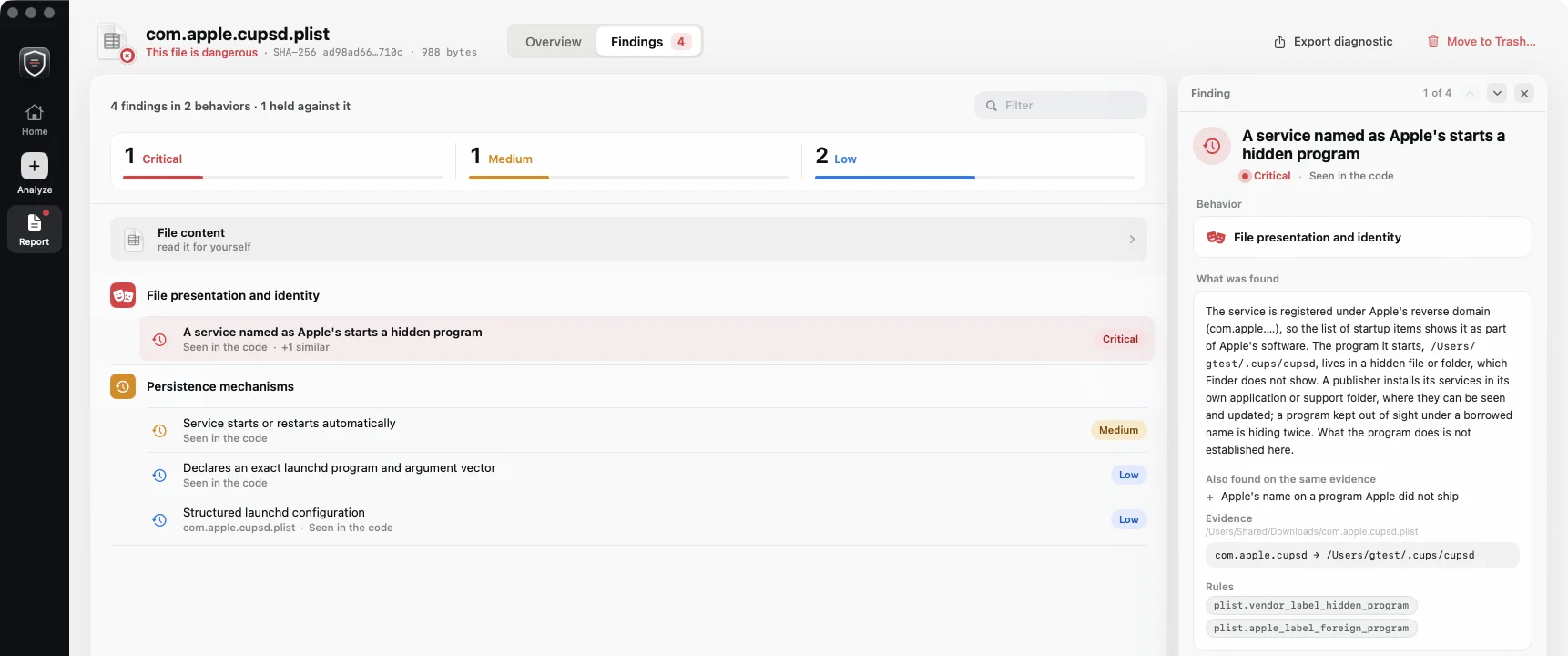
/Users/gtest/.cups/cupsd, is kept where Finder doesn’t show it: “hiding twice.” It also reports that the service starts or restarts by itself. This is a test file from MacVigil’s own test suite, made to be harmless: the program it names is not included and the address it passes leads nowhere.3. What launchd has loaded
launchctl list shows the services launchd has loaded for your account, in three columns: the process number if the service is running right now (a dash if not), the last exit status, and the label. Most labels start with com.apple., so filter those out:
launchctl list | grep -v com.apple
PID	Status	Label
-	0	com.example.updater
612	0	com.examplesync.helper
Each remaining label should match a file in one of the folders above or an app you know. Two limits: this shows your account’s services, not the system-wide daemons, and the filter also hides any service that borrows a com.apple. label, as the example above does. That is why the folders matter more than this list.
4. Configuration profiles
A configuration profile can set your browser’s proxy, install certificates your Mac trusts, or change other settings, so adware and scams sometimes ask you to install one. Type Device Management into the search field in System Settings to find the pane that lists them, or run:
profiles list
There are no configuration profiles installed for user 'example'
Without administrator rights this lists your own profiles; the full list for the device needs them. On a personal Mac you normally have none. On a Mac your employer or school manages, their profiles are expected; anything else is worth asking about.
5. Browser extensions
Extensions can read and change the pages you visit, which makes them a favorite of adware and of stealers looking for passwords and cookies. Every browser lists its extensions in its own settings: in Safari, in its Settings; in Chrome, Edge, Brave and other Chromium browsers, at the browser’s extensions page. Look for any you don’t remember installing, especially ones that can read “all websites.”
6. Shell startup files
zsh, the shell Terminal opens, reads ~/.zshenv every time it starts, even when it only runs a script, ~/.zshrc every time it starts interactively, and ~/.zprofile when it starts as a login shell, which is what a new Terminal window is by default. A line added to any of them runs again with every new window. Read them:
cat ~/.zshenv ~/.zshrc ~/.zprofile 2>/dev/nullLines from you or from developer tools (Homebrew, a version manager, an editor) are normal. Be suspicious of a line that downloads something with curl, decodes text with base64, runs osascript, or starts a program from a hidden folder in the background.
7. Privacy permissions
Malware that wants to watch you needs permissions, and macOS asks you before granting them. In System Settings › Privacy & Security, open Accessibility, Full Disk Access, Input Monitoring and Screen & System Audio Recording. Each lists the apps you allowed. An app you don’t know in any of them, or an app whose job has nothing to do with that access, is worth a closer look.
What these checks can’t tell you: what a program does. A startup entry tells you that something runs and where it lives. Whether that something steals passwords or checks for updates is in its code.
What MacVigil’s Scan My Mac does
The seven checks above take a while and cover the most common places. MacVigil’s Scan My Mac reads the places malware uses to stay or to hide, in one pass: launch agents and daemons, login items, shell startup files, browser extensions, privacy permissions, trusted certificates, even the MCP servers your AI agents start. For a startup entry, it also analyzes the program the entry launches, without running it, so you see what that program would do instead of a bare file name.
It needs Full Disk Access, because macOS keeps several of these places closed to other apps. It only reads: it never removes, disables or quarantines anything, and the decision stays yours. Nothing leaves your Mac.
If you find something
- Don’t delete it blindly. Some odd-looking entries belong to software you use, and deleting a
.plistleaves its program in place while erasing the trail that leads to it. - Write down the full path of the file and of the program it starts, and take a screenshot of what you found.
- Quit the app it belongs to, and if you think something is active right now, disconnect from Wi-Fi.
- If you typed your Mac password into something you now doubt, or pasted a command from a website, change your important passwords from another device, starting with your email.
- Once you know what it is, remove the app with its developer’s uninstaller, or move the
.plistout of its folder: launchd won’t find it after the next restart. Keep a copy for whoever helps you.
macOS also has its own protection: XProtect, Apple’s built-in malware detection, includes a remover that runs in the background and can remove known malware by itself. It only knows what Apple has already identified.
See everything that starts on your Mac, and what it does
MacVigil reads any app, disk image, installer or script without running it, and Scan My Mac reads the places where malware stays, with the evidence for each finding. Nothing leaves your Mac.
Free for 7 days, then $29.95 a year for 2 Macs, a launch price: the regular price will be $59 a year. Requires macOS 15 Sequoia or later on a Mac with Apple silicon.
More: pasted a command into Terminal? · fake password prompts · what MacVigil detects · all posts and guides