Blog · Guide · Before you type your password
How to spot a fake macOS password prompt
Your Mac password unlocks your keychain, which is why stealers ask for it. A few lines of script can draw a window that asks the way macOS does, and some keep asking until you give in. Here is how to tell the two apart, and what to do if you already typed it.
Updated November 15, 2026 · 8 min read
The short answer
- Ask yourself what you just did. A real prompt answers something you asked for: installing an app, unlocking a setting. A prompt that appears right after you opened a download or pasted a command is the one to refuse.
- Read who is asking. The system’s prompt names the app or tool that wants the change. A script’s dialog says whatever its author wrote.
- Click Cancel. A real prompt goes away. A fake one tends to come back, sometimes while Finder or the Dock keeps disappearing.
- If you already typed it, change your important passwords from another device, starting with your email.
When in doubt, cancel and do the thing yourself, from System Settings or the app you trust. If a password is really needed, macOS will ask again, in a place you chose.
Why a stealer wants your Mac password
On most Macs the login password also opens the login keychain, where macOS keeps passwords that apps save, and the keys Chrome and other browsers use to encrypt the passwords and cookies they store. A program that copies your keychain file still needs that password to read it. With it, the copy opens.
So stealers ask. AMOS (Atomic macOS Stealer), one of the best-known families, shows a window of its own asking for your password. Some check the answer against your account before going on, so a wrong password only brings the window back. Once they have it, they collect your keychain, browser data and wallet files and send them to their server.
macOS can’t stop a program from asking. Any app, and any script you run, can put up a window with a password field. Spotting the fake is up to you.
How a fake prompt is made
AppleScript, the scripting language built into macOS, has a display dialog command. Given a default answer and with hidden answer, it shows a text field that turns what you type into dots: a password field. The author picks the message, the window title, the button names and the icon, which can be any image file. A dialog that says “System Settings wants to make changes” with a lock or a gear on it takes one line.
The harsher versions add a loop. They show the dialog, check the password, and if it is wrong or you clicked Cancel, they show it again. Between attempts they kill Finder, the Dock or other parts of the desktop with killall, so your desktop icons and windows vanish and come back, and the Mac looks broken until you type the password.
These scripts reach you as a downloaded “update”, a script file, an app that runs one, or a command a web page asks you to paste into Terminal. That last trick has its own guide: a website asked you to paste a command in Terminal.
Real or fake: what to look at
| Look at | The system’s own prompt | A fake one |
|---|---|---|
| When it appears | Right after you asked for something that needs it: an installer, a lock in System Settings, a change to a protected folder. | Out of nowhere, or right after you opened a download, a script or a pasted command. |
| Who is asking | Names the app or tool that wants the change, and says what it wants to do. | A vague reason (“Update required”, “Your Mac needs your password”), or a system name used as a title. |
| The words | On macOS 13 and later the settings app is called System Settings. | Copies of older prompts still say “System Preferences”. |
| Touch ID | On a Mac with Touch ID, many requests let you use your fingerprint instead. | A script dialog has only a text field. An app can draw a lookalike, so Touch ID’s absence says more than its presence. |
| After Cancel | It goes away, and the change you started doesn’t happen. | It comes back, again and again. |
| Around it | The rest of the screen stays as it was. | Finder windows, desktop icons or the Dock disappear and reappear. |
A real prompt can still be the wrong one to answer. macOS also asks for your password when an app wants an item from your keychain: “App wants to use your confidential information stored in…”. That window is the system’s own, and malware can trigger it. Read the name of the app that is asking. If you don’t recognize it, click Deny.
What to do when a prompt looks wrong
- Don’t type the password. Click Cancel.
- Quit what started it. If you just opened an app, quit it. If you pasted a command, close that Terminal window. If it won’t quit, press Option-Command-Esc to open Force Quit Applications, choose it and click Force Quit.
- If the prompt keeps coming back and you can’t find what draws it (the loop may also close Activity Monitor), press and hold the power button until the Mac turns off (unsaved work in other apps is lost). If the prompt is back right after you log in again, something was set to start at login.
- Before using the Mac again, check System Settings › General › Login Items & Extensions for anything you don’t recognize, so the same thing can’t start again at login. Then put the file that started it in the Trash.
If you already typed it
Assume that whatever the password unlocks is in someone else’s hands: the passwords in your keychain and in your browsers, the sessions your browsers keep you signed in to, and any wallet on the Mac. Changing your Mac password afterward doesn’t help with a copy already taken, because that copy opens with the old one. What matters is changing the passwords inside it.
- Use another device, a phone or another computer, in case something is still running on the Mac.
- Start with your email, since it can reset everything else, then your Apple Account, bank, and the accounts you care most about. Where a site offers it, sign out of all other sessions; a stolen cookie can keep someone signed in without your password.
- Move any cryptocurrency to a new wallet created on another device.
- Change your Mac login password in System Settings › Users & Groups.
- Look for what was left behind: Login Items, and files added around that time in
~/Library/LaunchAgentsand/Library/LaunchAgents. Our guide to checking a Mac for malware goes through the rest.
Read a script before you run it
If someone sent you a script, or an “update” arrived as one, you can read it without running it. First see what the file is:
file ~/Downloads/Update\ Required.scpt
/Users/you/Downloads/Update Required.scpt: AppleScript compiled
A .applescript file is plain text: open it in TextEdit. A compiled .scpt needs osadecompile, which comes with macOS and writes the script’s source to the screen. It only reads the file.
osadecompile ~/Downloads/Update\ Required.scpt
repeat
	do shell script "killall Finder"
	set pw to text returned of (display dialog "System Preferences requires your password." default answer "" with hidden answer)
	try
		do shell script "dscl . -authonly $USER " & quoted form of pw
		exit repeat
	end try
end repeat
Everything this page describes is in those eight lines: kill Finder, ask for the password in a hidden field, check it against your account with dscl . -authonly, and start over until the password is right. Any script that asks for a password with with hidden answer and isn’t something you wrote deserves this kind of reading.
You can also open a script in Script Editor (in Applications › Utilities) with File › Open: it shows the source and runs nothing until you click the Run button. Use File › Open rather than a double-click, because a script saved as an application runs when you double-click it.
Some scripts are saved run-only, with their source left out. osadecompile then refuses:
osadecompile ~/Downloads/Installer.scpt
osadecompile: /Users/you/Downloads/Installer.scpt: errOSASourceNotAvailable (-1756).
Developers sometimes do this to protect their work, but a run-only script you were sent and can’t read is a script you shouldn’t run.
What MacVigil shows
MacVigil reads AppleScript as text or compiled, without running it, and follows what the script does with what it asks for. Here is its report on the script above.
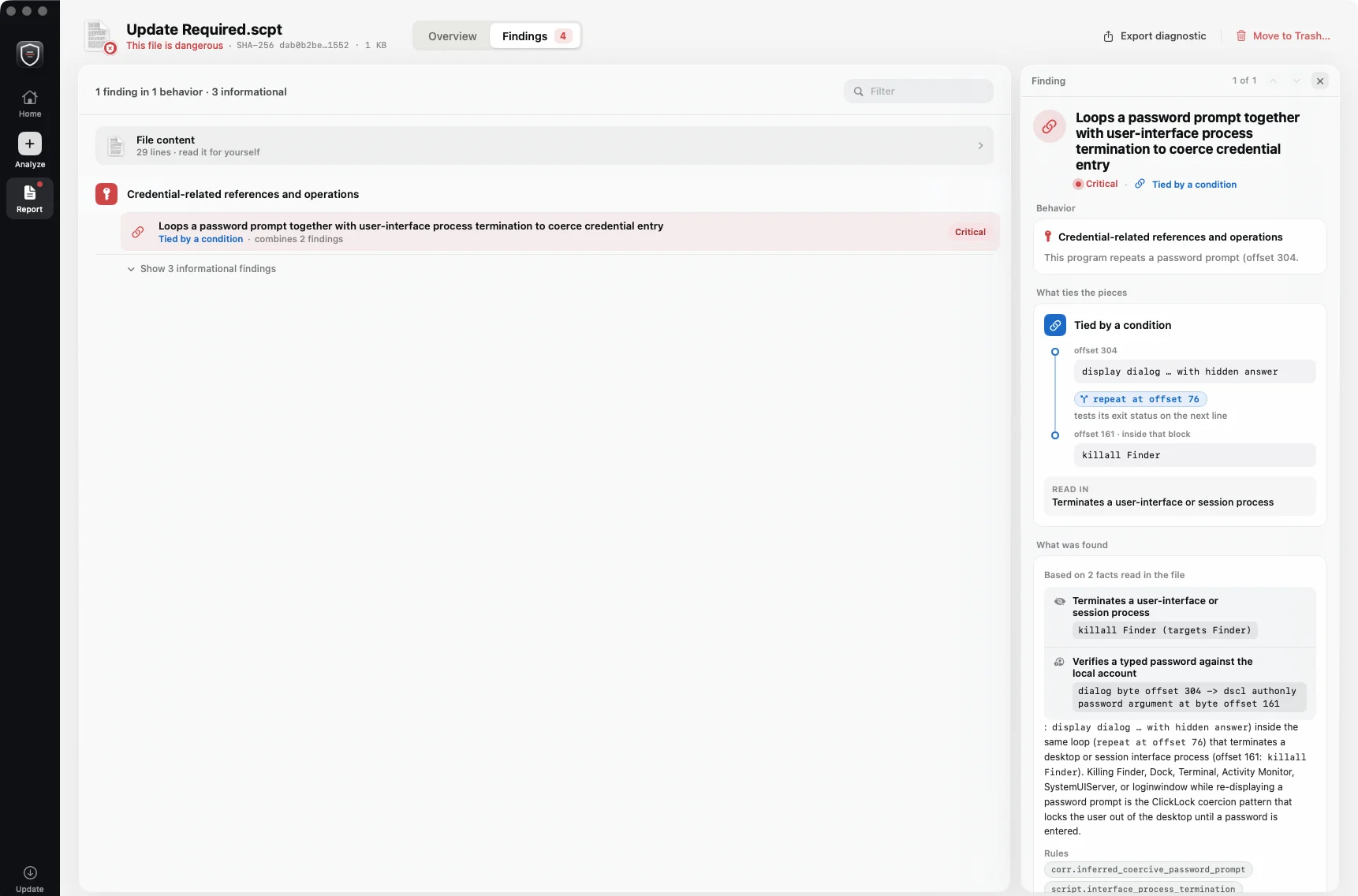
killall Finder at offset 161, and the loop at offset 76 that holds them together.The Critical finding says the script “loops a password prompt together with user-interface process termination to coerce credential entry”, and it shows what ties the two pieces: the same repeat loop, at offset 76. Two facts back it:
- Terminates a user-interface or session process:
killall Finder, targeting Finder. - Verifies a typed password against the local account: the answer typed into the hidden dialog is the password given to
dscl -authonly.
The report also says what it does not establish: that the loop runs, how many times, or where the typed password would go. It reads compiled scripts from their compiled form, so it still reads a run-only script that osadecompile refuses. Saved run-only, this same script still shows the password check and the killall Finder, but MacVigil no longer ties them to the loop and rates it suspicious, not dangerous. MacVigil never blocks, removes or quarantines anything: the file stays where it is, for you to decide.
Check the next one before you run it
MacVigil reads any app, disk image, installer or script without running it, and shows you what it would do to your Mac, with the evidence. Nothing leaves your Mac.
Free for 7 days, then $29.95 a year for 2 Macs, a launch price: the regular price will be $59 a year. Requires macOS 15 Sequoia or later on a Mac with Apple silicon.
More: pasted a command in Terminal? · check a Mac for malware · what MacVigil detects · all posts and guides