Blog · Guide · Before you open it
How to check a DMG or PKG for malware before you open it
The file is in your Downloads folder and you haven’t opened it yet. That is the best moment to check it, because so far nothing inside has run. Here is what a disk image, an installer package and a ZIP archive each run, and when, and how to look at them first.
Updated November 15, 2026 · 9 min read
The short answer
- Leave it closed for now. A downloaded file does nothing until you open it.
- Check where it came from and that it is the developer’s file: the download address, and the SHA-256 checksum if the developer publishes one.
- Check who signed it:
pkgutil --check-signaturefor a.pkg,spctlandcodesignfor a.dmgand the app inside. - Find out what the code inside does before it runs. A signature tells you who made the file, not what it will do.
Be most careful with a .pkg: its scripts run during installation, usually with administrator rights, before you ever see the app, and its Distribution file can run a check as soon as Installer opens it.
What each kind of file runs, and when
The three formats you meet most often on a Mac behave very differently once you double-click them.
| File | What double-clicking it does | When code runs |
|---|---|---|
.dmg (disk image) | Mounts the image like a USB drive and shows its contents in a Finder window. | Mounting runs nothing. Code runs when you open what is inside: the app, or a script or “installer” placed next to it. |
.pkg (installer package) | Opens Apple’s Installer, which copies files to their places on your Mac. | When Installer opens it, if its Distribution file runs a check (Installer first asks to “run a program to determine if the software can be installed”: click Don’t Allow), and during installation. A package can carry preinstall and postinstall scripts, and once you type your password they run with administrator (root) rights. The preinstall script runs before a single file has been copied. |
.zip (archive) | Archive Utility extracts the contents next to the archive. | Extraction runs nothing. Code runs when you open one of the extracted files. |
So a disk image gives you a second chance: you can mount it, look, and still decide not to open the app. An installer package gives you that chance only until Installer opens it. After that, its scripts have already done whatever they were written to do, whether or not you keep the app.
Check it yourself in Terminal
Open Terminal (in Applications › Utilities). In each command, replace the example path with your file: type the command, then drag the file from the Finder onto the Terminal window to paste its path. None of these commands opens, installs or runs anything.
1. Where did it come from?
macOS usually records the address a file was downloaded from:
mdls -name kMDItemWhereFroms ~/Downloads/Example.dmg
kMDItemWhereFroms = (
    "https://downloads.example.com/Example-2.4.dmg",
    "https://www.example.com/download"
)
The first address is the file, the second the page you downloaded it from. Both should belong to the developer, or to a place their own site links to, such as their GitHub releases. A file-sharing site, a shortened link or an ad is a reason to stop here.
If you see kMDItemWhereFroms = (null), there is no record: the file was copied from elsewhere, extracted from an archive, or saved by an app that doesn’t record it. That proves nothing by itself, but it means you have to rely on your own memory of where it came from.
2. Is it the file the developer published?
Some developers print a SHA-256 checksum on their download page, a long string of letters and digits that only their exact file produces. Compute the checksum of your copy:
shasum -a 256 ~/Downloads/Example.dmg
bb2d401770281f8e14dbdc20ce04738c9f2af1d79bef23e8237a75473665562f  /Users/you/Downloads/Example.dmg
Or let Terminal compare it for you. Go to the folder first, paste the published checksum, and keep the two spaces before the file name:
cd ~/Downloads
echo "published-checksum  Example.dmg" | shasum -a 256 -c
Example.dmg: OK

# if one character differs
Example.dmg: FAILED
shasum: WARNING: 1 computed checksum did NOT match
A match proves you have the same bytes the page describes. It doesn’t prove the page itself is honest: if the site was taken over, the file and its checksum can be replaced together. Use it alongside step 1, not instead of it.
3. Who signed it?
For an installer package, ask for its signature and certificate chain:
pkgutil --check-signature ~/Downloads/Example.pkg
Package "Example.pkg":
   Status: signed by a developer certificate issued by Apple for distribution
   Notarization: trusted by the Apple notary service
   Signed with a trusted timestamp on: 2026-10-02 14:16:55 +0000
   Certificate Chain:
    1. Developer ID Installer: Example Inc. (A1B2C3D4E5)
       …
    2. Developer ID Certification Authority
       …
    3. Apple Root CA
       …

# an unsigned package
Package "Example.pkg":
   Status: no signature
Check that the name after “Developer ID Installer” is the company you meant to download from. You can also ask Gatekeeper directly, which gives the short verdict it would apply:
spctl --assess --type install -vv ~/Downloads/Example.pkg
/Users/you/Downloads/Example.pkg: accepted
source=Notarized Developer ID
origin=Developer ID Installer: Example Inc. (A1B2C3D4E5)
For a disk image, the image itself may be signed too:
spctl -a -t open --context context:primary-signature -vv ~/Downloads/Example.dmg
/Users/you/Downloads/Example.dmg: accepted
source=Notarized Developer ID
origin=Developer ID Application: Example Inc. (A1B2C3D4E5)

# an image nobody signed
/Users/you/Downloads/Example.dmg: rejected
source=no usable signature
Many honest developers sign only the app and leave the image unsigned, so “no usable signature” on a disk image is common. What matters more is the app inside. Checking it takes spctl --assess --type execute and codesign on the app once the image is mounted; our guide on the “cannot verify” warning walks through both and explains every answer.
4. Look inside without opening anything
A disk image. Before mounting it, you can ask what kind of image it is, whether it is encrypted, and whether it is intact:
hdiutil imageinfo ~/Downloads/Example.dmg | grep -E '^Format:|Encrypted'
Format: UDZO
	Encrypted: false

hdiutil verify ~/Downloads/Example.dmg
…
hdiutil: verify: checksum of "Example.dmg" is VALID
hdiutil verify checks the image against the checksums stored inside it, so it catches a broken download. It says nothing about who made the image or what it holds. To see the contents without a Finder window opening, mount it read-only and hidden, list it, and eject it:
hdiutil attach -nobrowse -readonly -noautoopen ~/Downloads/Example.dmg
…
/dev/disk5s1   41504653-0000-11AA-AA11-0030654   /Volumes/Example

ls -l /Volumes/Example
drwxr-xr-x@ 3 you  staff   96 Aug 29 15:10 Demo.app
-rw-r--r--@ 1 you  staff  606 Aug 29 15:10 install.sh

hdiutil detach /Volumes/Example
"disk5" ejected.
That listing is the test image shown further down, and it already says something: next to the app sits a shell script. A normal app image holds the app and, usually, a shortcut to your Applications folder, plus hidden files for the window’s background picture.
An installer package. List the files it would install, then unpack it into a folder of your choice to find its scripts. Neither command installs anything:
pkgutil --payload-files ~/Downloads/Example.pkg
pkgutil --expand ~/Downloads/Example.pkg ~/Desktop/Example-expanded
ls ~/Desktop/Example-expanded/Scripts
postinstall
Reading those scripts is a topic of its own. Our guide to reading a package’s preinstall and postinstall scripts goes through it line by line.
A ZIP archive. List it without extracting:
unzip -l ~/Downloads/Example.zipIf unzip asks for a password when you try to extract, or zipinfo shows the entries’ type letter in capitals (T or B instead of t or b), the contents are encrypted.
5. Find out what the code does
Everything above tells you where the file came from, whether it arrived intact and who signed it. None of it tells you what the app, the script or the installer will do once it runs. That takes reading the code, which is what MacVigil does.
What these checks can’t tell you: whether the file is safe. A checksum can match a malicious file if the developer’s site was compromised. A signature can belong to a real company whose certificate is being misused, until Apple revokes it. An unsigned image can hold a perfectly honest app. These checks tell you where the file came from and who signed it, not what it does.
What MacVigil shows on a disk image
MacVigil reads a disk image without mounting it, and opens disk images, packages and ZIP archives in memory, entry by entry. It reads the code of each app and script it finds without running any of it, and tells you what that code would do, with the evidence. If the archive or image is protected by a password, give it the password and it decrypts the contents in memory. Nothing leaves your Mac.
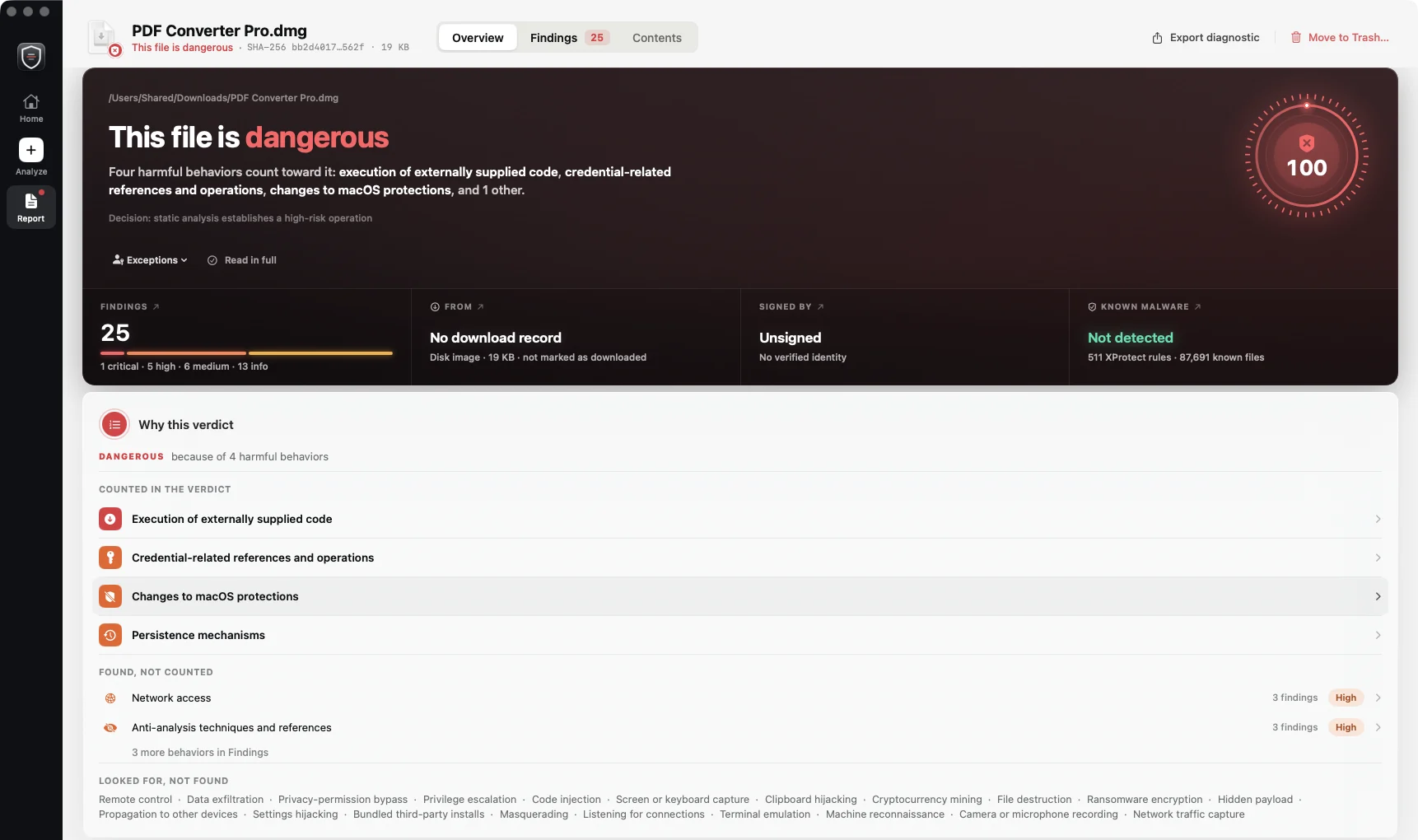
The verdict comes from the script at the root of the image, not from the app. MacVigil reports that the script:
- Downloads code and hands it straight to the shell. One line fetches a file from a bare IP address and pipes it into
bash. MacVigil marks this as critical, and it is the finding the verdict rests on: the report cites the line it read it on. - Contains the command that removes the download mark from a file in your Downloads folder (
xattr -d com.apple.quarantine). - Contains a command that asks the keychain for a saved password (
security find-generic-password). MacVigil notes that the image can also reach the network, and says plainly that this does not link the password to any transmission. - Copies a property list into
~/Library/LaunchAgentsand askslaunchctlto load it, the usual way to start something at every login. The report counts it, and says that the activation itself has not been established. - Contains an
osascriptline that would show a dialog with a hidden answer field, the kind used to ask for a password.
The app next to it is signed ad hoc, by no one you can look up, and its code calls ptrace to keep debuggers from attaching. On its own the app reads only “caution”. The app is what most people would look at; the script beside it is what the verdict rests on.
Red flags that should stop you
- A password-protected archive or disk image, with the password printed on the download page. Passwords keep scanners from looking inside, and there is rarely another reason to put one on a free download.
- The disk image window tells you what to do in Terminal, or to paste a command into Terminal, or walks you through getting past the macOS warning step by step. Real developers explain warnings on their website; malware distributors draw the instructions into the image’s background.
- The image holds a script or an “Install” shortcut instead of the app: a
.commandor.shfile, an icon named Install or Setup that is an alias, or an app named “Installer” for software that should simply be dragged to Applications. - The size doesn’t fit what it claims to be. The test image above is 19 KB, far too small for a real PDF converter.
- An installer package where you expected a disk image, or a package for something that has no reason to install files across your system. Ask why it needs administrator rights before you give them.
- The download came from an ad, a file host or a link someone sent you, or it is a “free” or cracked copy of a paid app.
The right next step
If everything checks out, the source is the developer’s, the signature names them, and nothing harmful turns up in the code: open the disk image, drag the app to Applications, eject the image and move it to the Trash. Open the app from Applications. For a package, read its scripts first, then install. If macOS still warns that it can’t verify the app, our guide on what that warning means explains how to decide and how to open it the right way.
If something doesn’t fit, don’t open the file. Move it to the Trash and get the software from the developer’s own site, or not at all. If you only mounted a disk image, nothing ran: eject it and delete it.
If you already opened the app, ran a script from the image or installed the package, see what to check if you already opened it.
Check the next download before you open it
MacVigil reads any app, disk image, installer or script without running it, and shows you what it would do to your Mac, with the evidence. Nothing leaves your Mac.
Free for 7 days, then $29.95 a year for 2 Macs, a launch price: the regular price will be $59 a year. Requires macOS 15 Sequoia or later on a Mac with Apple silicon.
More: reading a package’s install scripts · “macOS cannot verify” explained · how MacVigil analyzes a file · all posts and guides