Blog · November 25, 2026 · Guide
After a stealer on your Mac: what to change, and in what order
“Change your passwords” is not enough after a stealer, and the order matters. We took a real one apart to see what it is written to take, and built the checklist from that.
You opened something you should not have, a password window appeared, you typed, and nothing seemed to happen. Later you learn the file was a stealer. The usual advice is “change your passwords.” That is true, and incomplete: a stealer takes more than passwords, some of what it takes cannot be fixed by a new password, and the order in which you act matters.
The best way to know what to do is to look at what a stealer is written to take. So we took one apart. We collected a small Mac program delivered under the name Patch, 443 KB, for both Intel and Apple silicon Macs. MacVigil rates it dangerous, 92 out of 100, without checking any list of known files; when the file is read in full, the score is 98. Everything below follows from what is inside it.
What MacVigil reads in the file
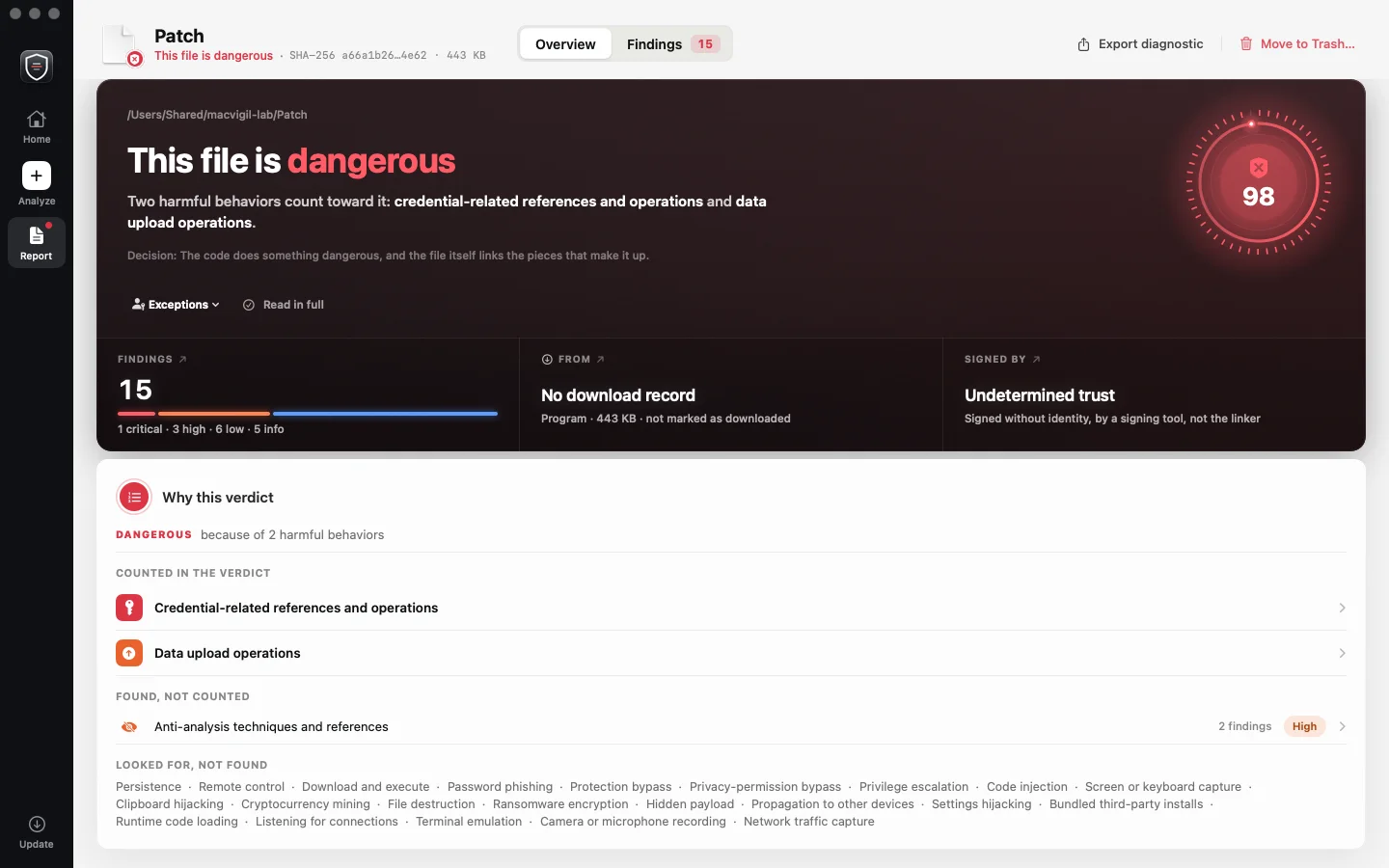
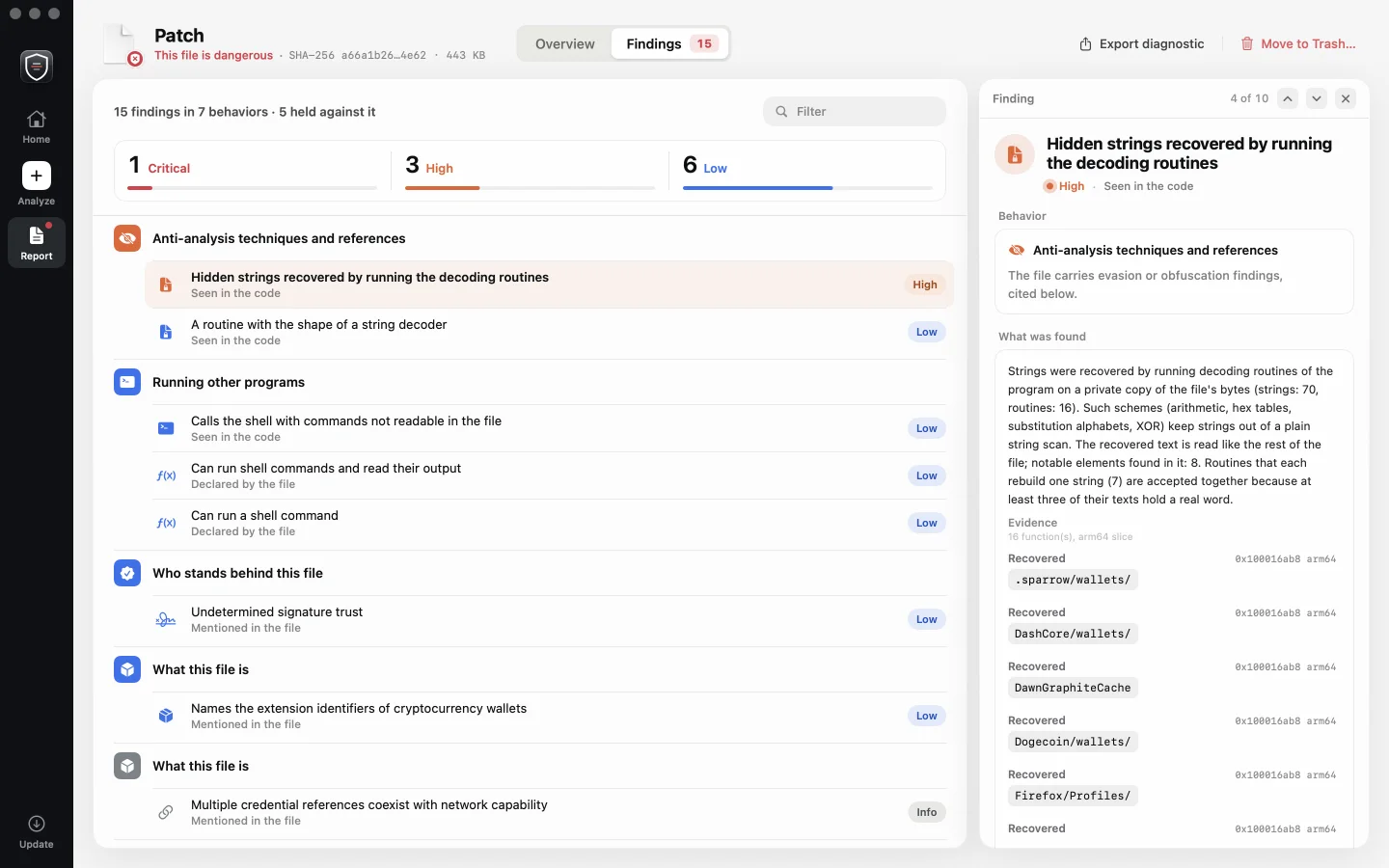
The program hides its text. The paths, commands and names it works from are stored encrypted, and MacVigil recovers them by replaying the program’s own decoding routines on a copy of its bytes, without starting it. The finding that decides the verdict is this one:
Carries a concealed configuration naming several places of one kind it would act on
In MacVigil’s words: “The strings this program works from are not written in the file: they are concealed, and the file carries the code that reveals them.” Read in full, the hidden text names six places, and each one is a place where a Mac keeps secrets:
security find-generic-password -ga "Chrome" …
/key4.db
/Web Data
/cookies.sqlite
Keychains/login.keychain-db
Containers/com.apple.Safari/Data/Library/Cookies/Cookies.binarycookies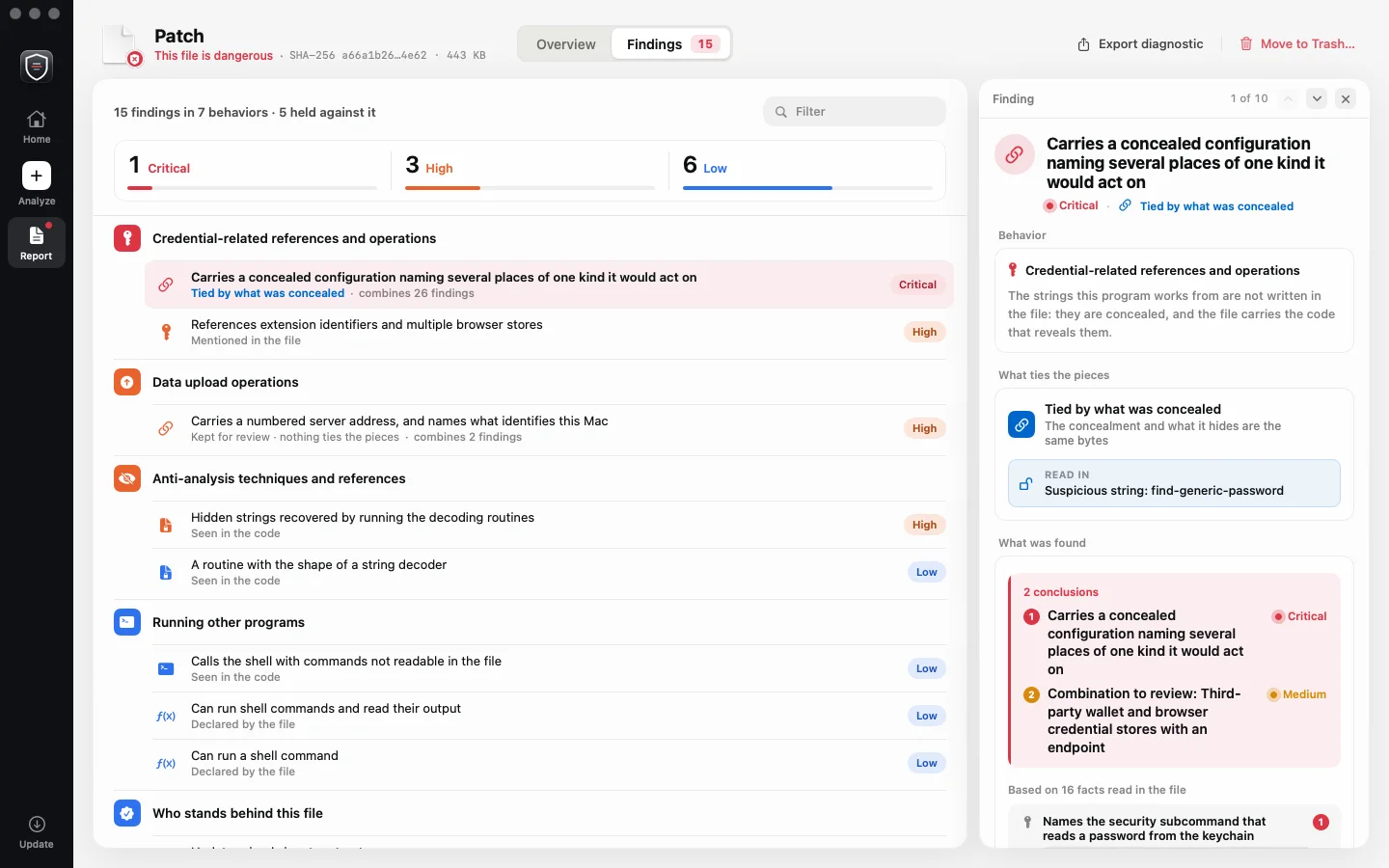
MacVigil explains each of them. The first “names the security subcommand that reads a password from the keychain.” The second is the “Firefox key database used to decrypt saved credentials.” The third “names the Chromium database of autofill entries and saved payment cards.” The fourth is the Firefox cookie database, whose “cookies can open web sessions elsewhere.” The fifth “names the login keychain file, which holds saved passwords.” The last is the “Safari cookie database that can be used to steal web sessions.”
The report adds two things. The file “contains 223 strings shaped like Chrome extension identifiers,” and MacVigil notes that it “names the extension identifiers of cryptocurrency wallets.” And the program calls the shell at 15 places with commands that cannot be read in the file: “the shape of a program whose commands are decoded in memory just before they run.”
What the file is written to do
We then read the program by hand and decoded all of its hidden strings: more than 400 of them, 223 of which are browser extension identifiers. Read in the order the code uses them, they give the list this guide is built on.
It is written to ask for your Mac password. The file carries a dialog titled “Password Request” that says “Please enter device password to continue,” with a hidden answer, and a command that checks the typed password against the account. A wrong password would be noticed, so the one it keeps is the right one.
It is written to take the keychain and the browsers’ keys. The code names the login keychain file and a short entry called kc in its collection folder; we infer that entry is the copy of the keychain. It also carries a command that asks the keychain for Chrome’s storage key. With the Mac password, a copied keychain can be opened elsewhere.
It is written to take what twelve Chromium browsers and two Firefox-family browsers hold. For each profile of Chrome, Brave, Edge, Vivaldi, Opera, Arc and others, the code names the cookies, the saved logins, the autofill and card database, and the data of browser extensions. For Firefox and Waterfox, it names the cookies, the form history, the saved logins and the key that decrypts them. Safari’s cookies are on the list too.
It is written to take wallets. The code lists the folders of sixteen desktop wallets, among them Electrum, Exodus, Atomic, Coinomi, Wasabi, Sparrow, Ledger Live and Trezor Suite, and the stored data of the 223 extensions.
It is written to take a few things people forget. The Notes database, plus a script that asks Notes for the text of every note; the Telegram Desktop session folder; the Terminal command history; the FileZilla list of recent servers; and two SSH files, the list of known hosts and the list of authorized keys. No private SSH key path appears among the decoded strings.
It is written to send all of it, then clean up. The collection folder is compressed into one archive under /tmp, posted to a server with curl, and then both the folder and the archive are deleted.
It is written to stay, and to wait for your recovery phrase. After the upload, the code downloads a second program, marks it executable and starts it in the background. It writes five small hidden files, one of which holds the password; we infer they are left in the home folder for that second program. Finally, for Ledger Live, Ledger Wallet and Trezor Suite, the code quits the app, deletes it from the Applications folder, using the stolen password with sudo if needed, and unpacks a downloaded replacement in its place. What those downloads contain is not in this file.
What to do, in order
The list above gives the order. Start with what cannot be undone, then what gives access to everything else, then the rest.
- Stop using the infected Mac for anything secret. The file is written to leave a second program running. Any new password typed on that Mac may be read again. Do every step below from another device you trust, such as your phone.
- Move your cryptocurrency first. A stolen seed or wallet file cannot be changed, and a transfer cannot be reversed. On a clean device, create a new wallet with a new recovery phrase and move the funds to it. Do not open Ledger Live or Trezor Suite on the infected Mac, and never type a recovery phrase into an app on a computer: the real apps do not ask for it there.
- Secure your main e-mail account. It resets every other password. Change its password, then use its “sign out of all devices” option. This second step matters: the stealer is written to take cookies, and a cookie is a session that is already signed in. A new password alone does not always close it.
- Then your Apple Account, your password manager, your bank and payment services, and your work accounts. Same two steps each time: new password, then sign out everywhere. Check the list of trusted devices and remove what you do not recognize.
- Then everything saved in your browsers and in the keychain. Treat every saved password as read. Go through the list your browser shows under saved passwords, most important first. Cards saved for autofill were in the same database: watch the statements, and ask your bank for a new card if you see anything you did not buy.
- Close the sessions that are not passwords. In Telegram, end all other sessions from your phone. If you run servers, review each server’s authorized keys and revoke any token or password that appears in your Terminal history or in an FTP client.
- Go through your notes. If a note held a password, a recovery phrase or a card number, treat it as read and replace what it protected.
- Clean the Mac last, and completely. Because the file is written to install a second program and to replace apps, removing one file is not enough. The sure way is to erase the Mac (System Settings, General, Transfer or Reset, Erase All Content and Settings), set it up again, and reinstall apps from their makers. Then choose a new Mac password: the old one was typed into the fake window.
- Turn on two-factor authentication where you had not. It does not protect a session that was already stolen, which is why step 3 comes first, but it protects the next password.
How to avoid the next one
- A real Mac app does not open a bare window that says “Please enter device password to continue.” See how to tell a fake password prompt.
- A “patch,” a crack or a free copy of paid software is the most common wrapping for this kind of file. See what cracked Mac apps carry.
- Never paste a command into Terminal because a web page tells you to. See ClickFix.
- Look at a download before you open it: check a DMG or PKG, and what to do when macOS cannot verify an app. Once MacVigil is available, you will be able to drop a file like this one into it and read the verdict before anything runs.
- If you are unsure whether something already ran, start with how to check a Mac for malware.
The files
Patch: a universal program for Intel and Apple silicon Macs, 443 KB (442,768 bytes), signed without identity- SHA-256:
a66a1b26e99fa607b2241217c1c8fa43017d58e10f48a1c2a15d60bf34784e62 - First seen: November 22, 2026
- Verdict by behavior alone: dangerous, 92 out of 100 (98 when read in full)
The section read by hand is a static reading: the files were not run, and no server was contacted.
Get the next write-up by email:
More: all posts and guides